> For the complete documentation index, see [llms.txt](https://participanthelp.dscout.com/llms.txt). Markdown versions of documentation pages are available by appending `.md` to page URLs; this page is available as [Markdown](https://participanthelp.dscout.com/troubleshooting/upload-issues-troubleshooting-steps-for-dscout-mobile-app.md).
# Upload issues troubleshooting steps for Dscout mobile app
If your video or photo didn’t upload even though your entry appears to have uploaded properly, you'll receive an email from Dscout notifying you of the upload issue with instructions on how to fix the issue. If you don't respond to that email, your study leader might reach out to you via our in-app messaging feature or they might comment on the entry with the missing media to notify you about it.
Read more below on for steps on addressing a media upload issue as well as mitigating these issues in the future.
Encountering upload issues in a desktop study? Check out [this article](/diary-studies/diary-troubleshooting/upload-issues-and-troubleshooting-steps-for-desktop-diary-activities.md)!
## Fixing a media upload issue
#### Reply via email
When you receive an email from Dscout alerting you of an upload issue, the solution is easy: simply reply directly to the email and attach the media described in the email. Once you send your media, our Support team will attach it to your impacted entry on your behalf. No need to submit additional entries! Emails related to upload issues will always begin with the following subject line: "Action Needed: Media Upload Incomplete"
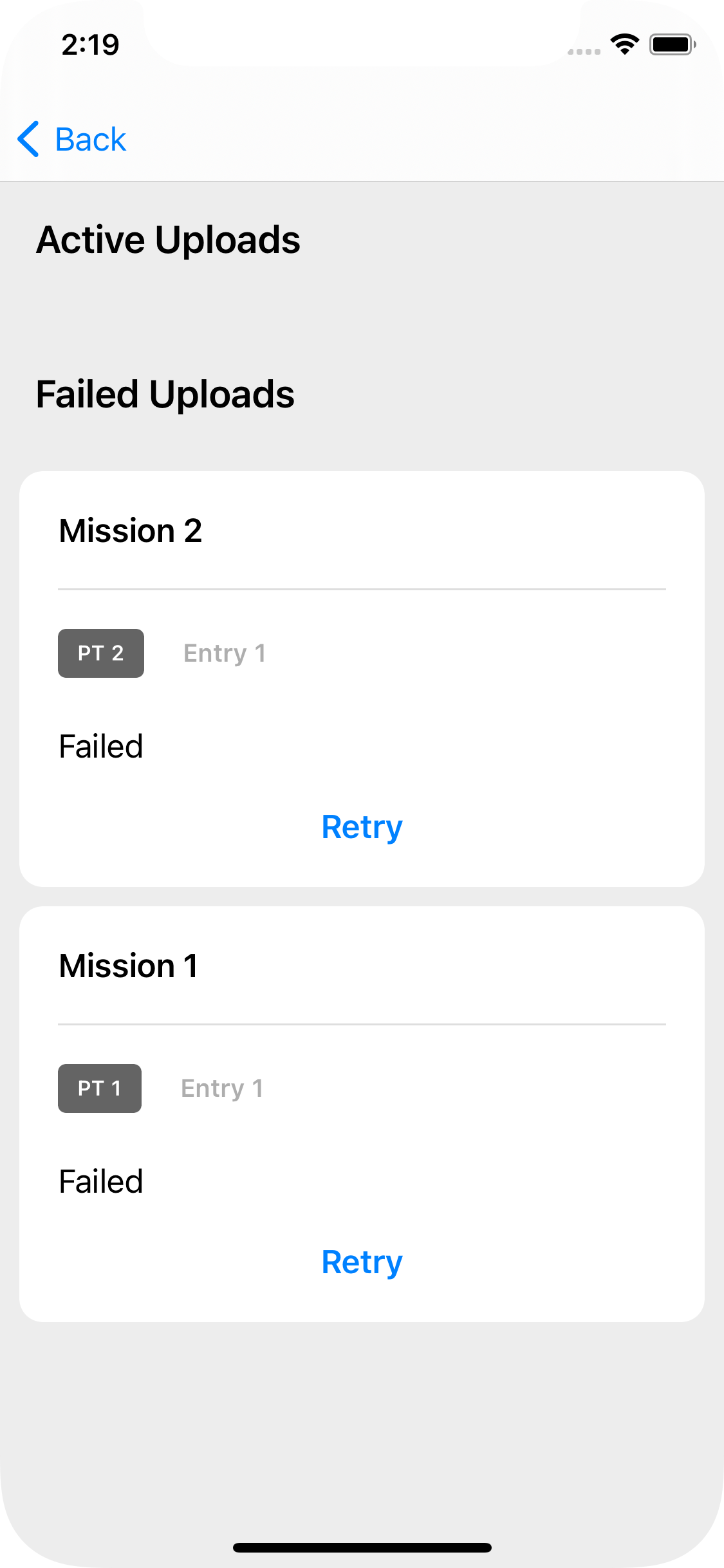
**Note for iPhone users:** if an upload is in progress or has failed, you will see an "active uploads" at the bottom of your Profile tab. If your upload has failed, you will see a "retry" button. Try this out before sending our Support team your missing media!
 #### Working with your study leader
If your study leader reaches out to you (via in-app messaging or commenting on the entry in question) to notify you that your media didn’t upload even though your entry was successfully submitted, you can also email the missing media to our team. Follow these steps to do so:
1. Identify the entry in question. You may have, for example, successfully submitted **Entry 1** in **Activity 1**, but with a failed video.
2. Send an email to our Support team with your missing media file attached (you’ll be able to find this file in your phone’s media storage). You can contact our team by email: .
3. In the body of your email, please make sure to mention the study name, activity name, and entry number.
{% hint style="info" %}
**Note:** If your media is larger than 25MB, you may not be able to attach it to an email. In that case, upload it to Google Drive, Dropbox, or another file-sharing service and send the link to . Make sure anyone with the link can view your video.
{% endhint %}
## Preventing upload issues
To mitigate issues with your media uploads in the future, we recommend these best practices:
* **Make sure your app is up to date.** Check the App Store or Google Play Store periodically for updates to the Dscout mobile app to make sure you’re on the latest version.
* **Establish and participate while on a strong internet connection.** Try to connect to trusted wifi networks or use your own mobile device’s data when uploading. Firewall and poor connections are often the cause of failed uploads.
* **Don’t close out of the Dscout mobile app.** The Dscout mobile app needs to be operating in your phone’s background for the upload to be successful.
---
# Agent Instructions
This documentation is published with GitBook. GitBook is the documentation platform designed so that both humans and AI agents can read, navigate, and reason over technical content effectively. Learn more at gitbook.com.
## Querying This Documentation
If you need additional information that is not directly available in this page, you can query the documentation dynamically by asking a question.
Perform an HTTP GET request on the current page URL with the `ask` query parameter, and the optional `goal` query parameter:
```
GET https://participanthelp.dscout.com/troubleshooting/upload-issues-troubleshooting-steps-for-dscout-mobile-app.md?ask=&goal=
```
`ask` is the immediate question: it should be specific, self-contained, and written in natural language.
`goal` is optional and describes the broader end goal you are ultimately trying to accomplish on behalf of the user. GitBook uses it to tailor the answer towards what is most useful for that goal.
The response will contain a direct answer to the question and relevant excerpts and sources from the documentation.
Use this mechanism when the answer is not explicitly present in the current page, you need clarification or additional context, or you want to retrieve related documentation sections.
#### Working with your study leader
If your study leader reaches out to you (via in-app messaging or commenting on the entry in question) to notify you that your media didn’t upload even though your entry was successfully submitted, you can also email the missing media to our team. Follow these steps to do so:
1. Identify the entry in question. You may have, for example, successfully submitted **Entry 1** in **Activity 1**, but with a failed video.
2. Send an email to our Support team with your missing media file attached (you’ll be able to find this file in your phone’s media storage). You can contact our team by email: .
3. In the body of your email, please make sure to mention the study name, activity name, and entry number.
{% hint style="info" %}
**Note:** If your media is larger than 25MB, you may not be able to attach it to an email. In that case, upload it to Google Drive, Dropbox, or another file-sharing service and send the link to . Make sure anyone with the link can view your video.
{% endhint %}
## Preventing upload issues
To mitigate issues with your media uploads in the future, we recommend these best practices:
* **Make sure your app is up to date.** Check the App Store or Google Play Store periodically for updates to the Dscout mobile app to make sure you’re on the latest version.
* **Establish and participate while on a strong internet connection.** Try to connect to trusted wifi networks or use your own mobile device’s data when uploading. Firewall and poor connections are often the cause of failed uploads.
* **Don’t close out of the Dscout mobile app.** The Dscout mobile app needs to be operating in your phone’s background for the upload to be successful.
---
# Agent Instructions
This documentation is published with GitBook. GitBook is the documentation platform designed so that both humans and AI agents can read, navigate, and reason over technical content effectively. Learn more at gitbook.com.
## Querying This Documentation
If you need additional information that is not directly available in this page, you can query the documentation dynamically by asking a question.
Perform an HTTP GET request on the current page URL with the `ask` query parameter, and the optional `goal` query parameter:
```
GET https://participanthelp.dscout.com/troubleshooting/upload-issues-troubleshooting-steps-for-dscout-mobile-app.md?ask=&goal=
```
`ask` is the immediate question: it should be specific, self-contained, and written in natural language.
`goal` is optional and describes the broader end goal you are ultimately trying to accomplish on behalf of the user. GitBook uses it to tailor the answer towards what is most useful for that goal.
The response will contain a direct answer to the question and relevant excerpts and sources from the documentation.
Use this mechanism when the answer is not explicitly present in the current page, you need clarification or additional context, or you want to retrieve related documentation sections.