> For the complete documentation index, see [llms.txt](https://participanthelp.dscout.com/llms.txt). Markdown versions of documentation pages are available by appending `.md` to page URLs; this page is available as [Markdown](https://participanthelp.dscout.com/interview-studies/participate-in-interview-studies/participating-in-interview-studies.md).
# Participating in interview studies
## How to accept your invitation
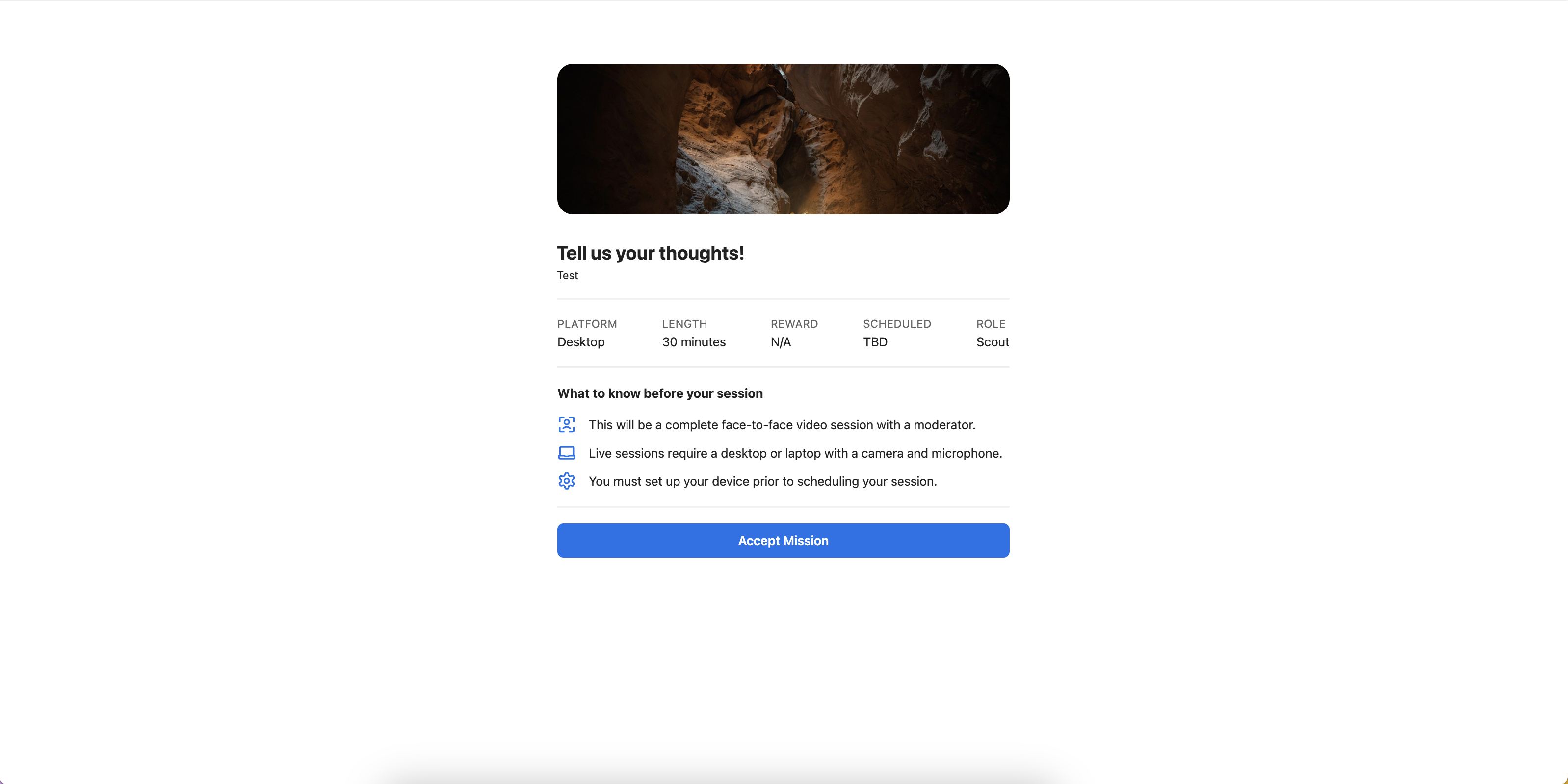
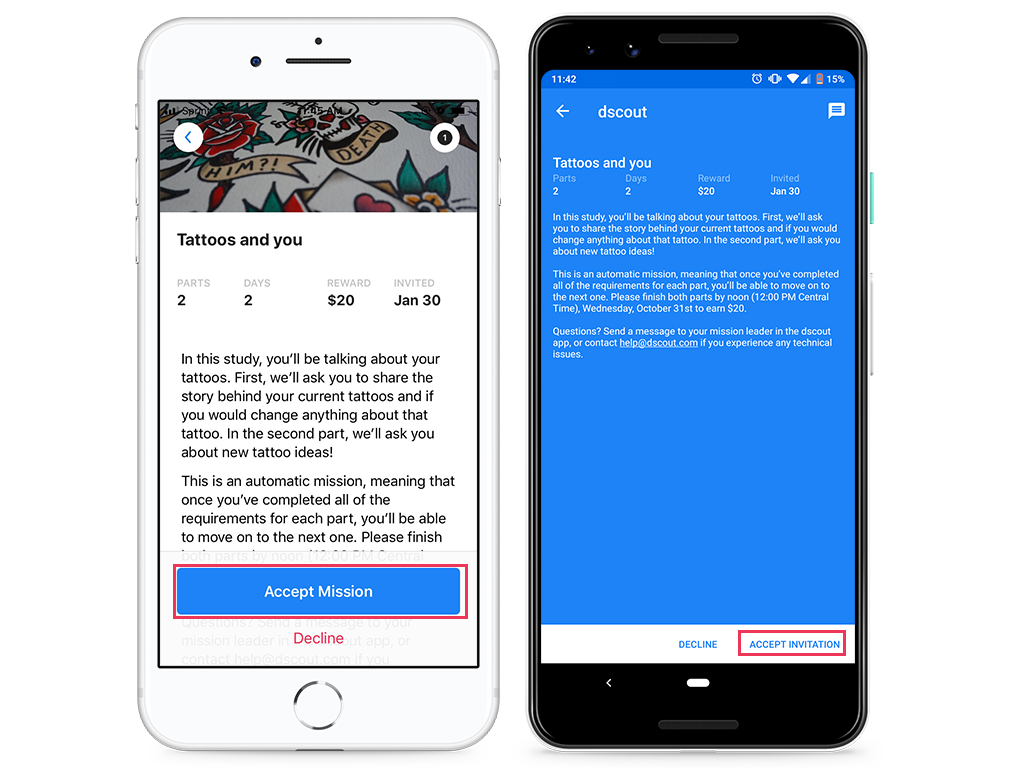
To accept your invitation to the study, follow these steps:
1. Log into your account on the Dscout mobile app.
2. Find the tab labeled **Studies** (rocket icon) on the bottom navigation bar and tap on it.
3. Find the study you’ve been invited to under the **Invites** section and tap on the image to continue.
4. When you tap on the card, you’ll land on the **Study Overview** page. You can read up more about the study details, instructions, structure, and invite date here.
5. To accept the invitation and get started, tap on **Accept Invitation**.
6. To decline the invitation, tap on **Decline**.
7. If you want to message your study leader(s), tap on the **messaging icon** in the top right corner of the screen. Any message you send here will go directly to your study leader(s).
*Desktop:*
 *Mobile:*
 {% hint style="info" %}
**Note:** You can accept a desktop interview invitation without using the Dscout mobile app. Open the link in your invitation email, sign in, complete your [Interview pre-test](#h_c19ac636-c1e7-4711-b859-91fa1a1719e5), and schedule a time.
{% endhint %}
## Who is/are your study leader(s)?
Study leaders are the folks in charge; we also call them moderators for interview studies. They're the ones you'll be having a conversation with during your interview session. They're also available in case you have questions that aren't answered in the study overview or instructions, or if you have trouble [scheduling](#h_5f6f0dc7-6d94-4edf-ab00-f61eb0f6a1d6) and [rescheduling](#h_82a8b383-c945-4e08-b8e5-020b3619c90a) a session. You can contact yours by tapping the "Messages" tab while viewing a study in the app, or by replying directly to your email invitation.
## Requirements for getting paid
So long as you schedule a session, call in at your scheduled time, and successfully complete the session, your study leader(s) will mark you as approved for payments!
## Completing your interview pre-test
Complete these tasks more than 24 hours before your session. It is important to be set up well in advance so you can grab a timeslot before they're all gone. The pre-test also helps ensure that you'll be able to call into your interview session on time! If you are more than 10 minutes late, you could be marked as a no-show and may not have another opportunity to participate.
To make this experience as smooth as possible, here’s your to-do list!
### desktop interview
1. Make sure you have Google Chrome or Microsoft Edge installed on a computer with a microphone and a webcam.
2. Complete your interview pre-test by clicking on the session link in your invitation email. Follow the prompts here to test your connectivity, camera, microphone, and speakers to make sure your set-up is good to go for your call!
If your **camera, microphone, or browser** check fails, take a screenshot and send us an email [here](mailto:live@dscout.com) for support. We also recommend checking out [this troubleshooting document](/interview-studies/interview-technical-requirements/interview-pre-test-scout-overview-troubleshooting.md) if you're short on time!
A weak **connection** check won't stop you from scheduling or joining your session—see [Improve your interview session quality](/interview-studies/interview-troubleshooting/improve-your-interview-call-quality.md) for ways to strengthen it before your call.
### mobile interview
1. Navigate to your interview study via the **Studies** tab
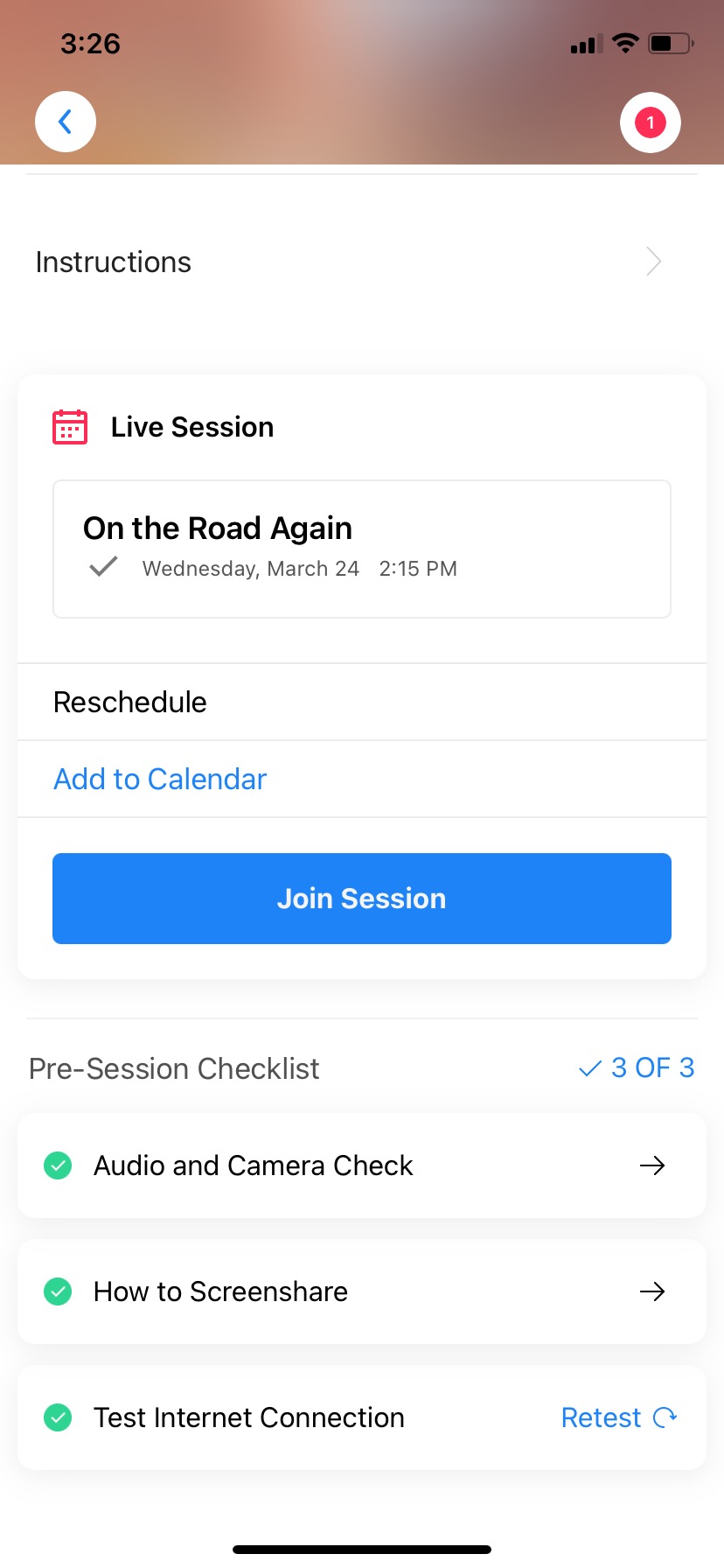
2. Complete the "Pre-Session Checklist" items at the bottom of the study to test your audio, camera, and learn about screensharing. Once you complete each check, a green checkmark will appear next to the item so you know it's complete.
## Scheduling your interview session
Once you've completed your interview pre-test, it's time to schedule your session! How you schedule your interview session depends on what type of scheduling the study leader(s) has/have enabled. Read more about the two options below:
### Automatic scheduling
If the study leader(s) has/have pre-determined their availability with pre-booked sessions, you'll be able to select from a list of available time slots immediately after you complete your interview pre-test. Check out the steps below:
{% stepper %}
{% step %}
After you accept your study and complete the [hardware setup (pre-test) process](/interview-studies/interview-technical-requirements/interview-pre-test-scout-overview-troubleshooting.md), you'll be able to see all the available time slots that your study leader(s) has/have chosen.
{% endstep %}
{% step %}
Select the time slot you would like to reserve (*please note*: all time slots will be listed in your system’s timezone).
{% endstep %}
{% step %}
Click the **Confirm Time Slot** button to finish reserving the date and time of your interview session.
{% endstep %}
{% step %}
After booking, you will receive a scheduling confirmation email. You will also receive reminders 1 day and 1 hour before your scheduled session.
{% endstep %}
{% endstepper %}
{% hint style="info" %}
**For mobile interview:** you'll be prompted to schedule a time when you accept your invite. If you weren't, you can also navigate to your study via the app and tap "Choose time slot" to pick a time!
{% endhint %}
{% hint style="info" %}
**Note:** No more time slots available? Reach out to your study leader. They may be out of openings, or they may be able to schedule your session manually.
{% endhint %}
*Desktop:*
{% hint style="info" %}
**Note:** You can accept a desktop interview invitation without using the Dscout mobile app. Open the link in your invitation email, sign in, complete your [Interview pre-test](#h_c19ac636-c1e7-4711-b859-91fa1a1719e5), and schedule a time.
{% endhint %}
## Who is/are your study leader(s)?
Study leaders are the folks in charge; we also call them moderators for interview studies. They're the ones you'll be having a conversation with during your interview session. They're also available in case you have questions that aren't answered in the study overview or instructions, or if you have trouble [scheduling](#h_5f6f0dc7-6d94-4edf-ab00-f61eb0f6a1d6) and [rescheduling](#h_82a8b383-c945-4e08-b8e5-020b3619c90a) a session. You can contact yours by tapping the "Messages" tab while viewing a study in the app, or by replying directly to your email invitation.
## Requirements for getting paid
So long as you schedule a session, call in at your scheduled time, and successfully complete the session, your study leader(s) will mark you as approved for payments!
## Completing your interview pre-test
Complete these tasks more than 24 hours before your session. It is important to be set up well in advance so you can grab a timeslot before they're all gone. The pre-test also helps ensure that you'll be able to call into your interview session on time! If you are more than 10 minutes late, you could be marked as a no-show and may not have another opportunity to participate.
To make this experience as smooth as possible, here’s your to-do list!
### desktop interview
1. Make sure you have Google Chrome or Microsoft Edge installed on a computer with a microphone and a webcam.
2. Complete your interview pre-test by clicking on the session link in your invitation email. Follow the prompts here to test your connectivity, camera, microphone, and speakers to make sure your set-up is good to go for your call!
If your **camera, microphone, or browser** check fails, take a screenshot and send us an email [here](mailto:live@dscout.com) for support. We also recommend checking out [this troubleshooting document](/interview-studies/interview-technical-requirements/interview-pre-test-scout-overview-troubleshooting.md) if you're short on time!
A weak **connection** check won't stop you from scheduling or joining your session—see [Improve your interview session quality](/interview-studies/interview-troubleshooting/improve-your-interview-call-quality.md) for ways to strengthen it before your call.
### mobile interview
1. Navigate to your interview study via the **Studies** tab
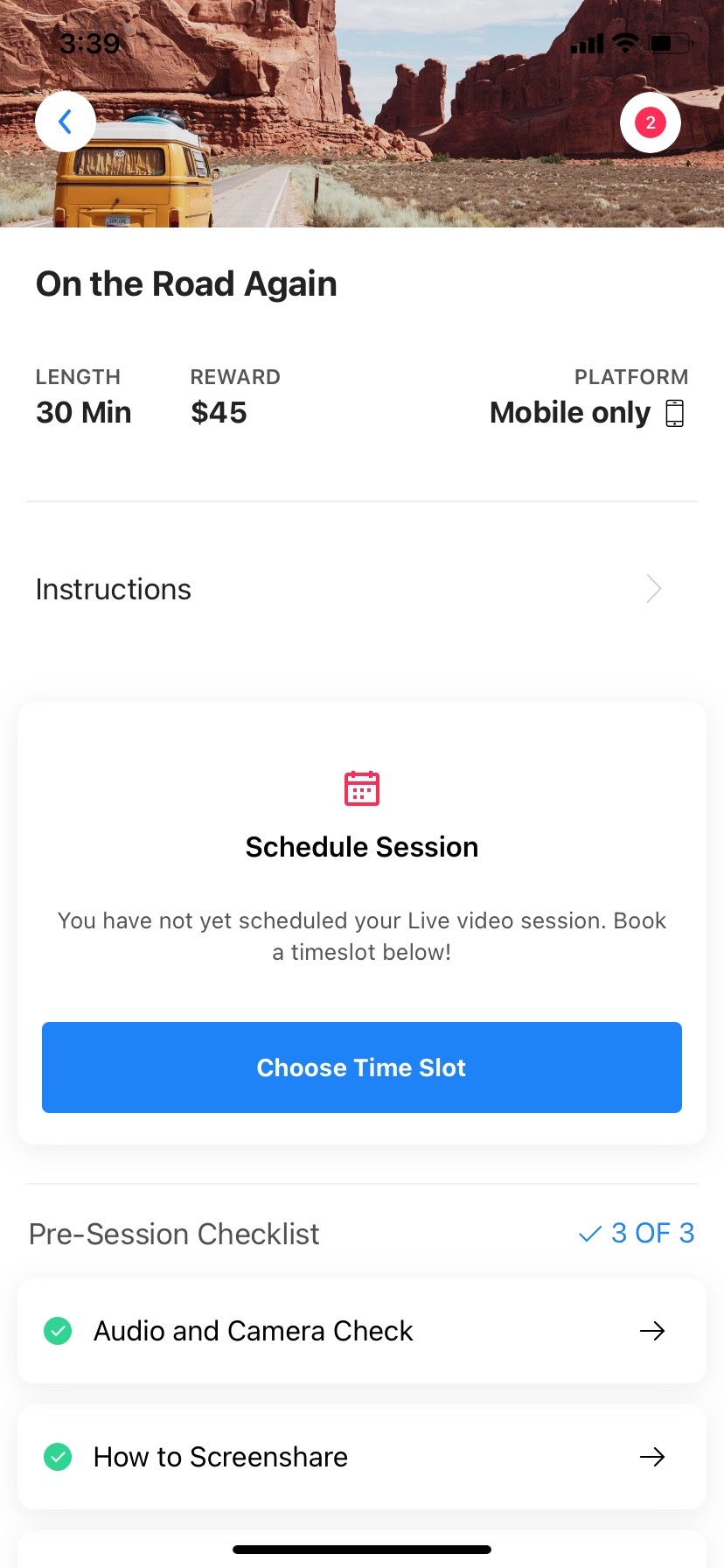
2. Complete the "Pre-Session Checklist" items at the bottom of the study to test your audio, camera, and learn about screensharing. Once you complete each check, a green checkmark will appear next to the item so you know it's complete.
## Scheduling your interview session
Once you've completed your interview pre-test, it's time to schedule your session! How you schedule your interview session depends on what type of scheduling the study leader(s) has/have enabled. Read more about the two options below:
### Automatic scheduling
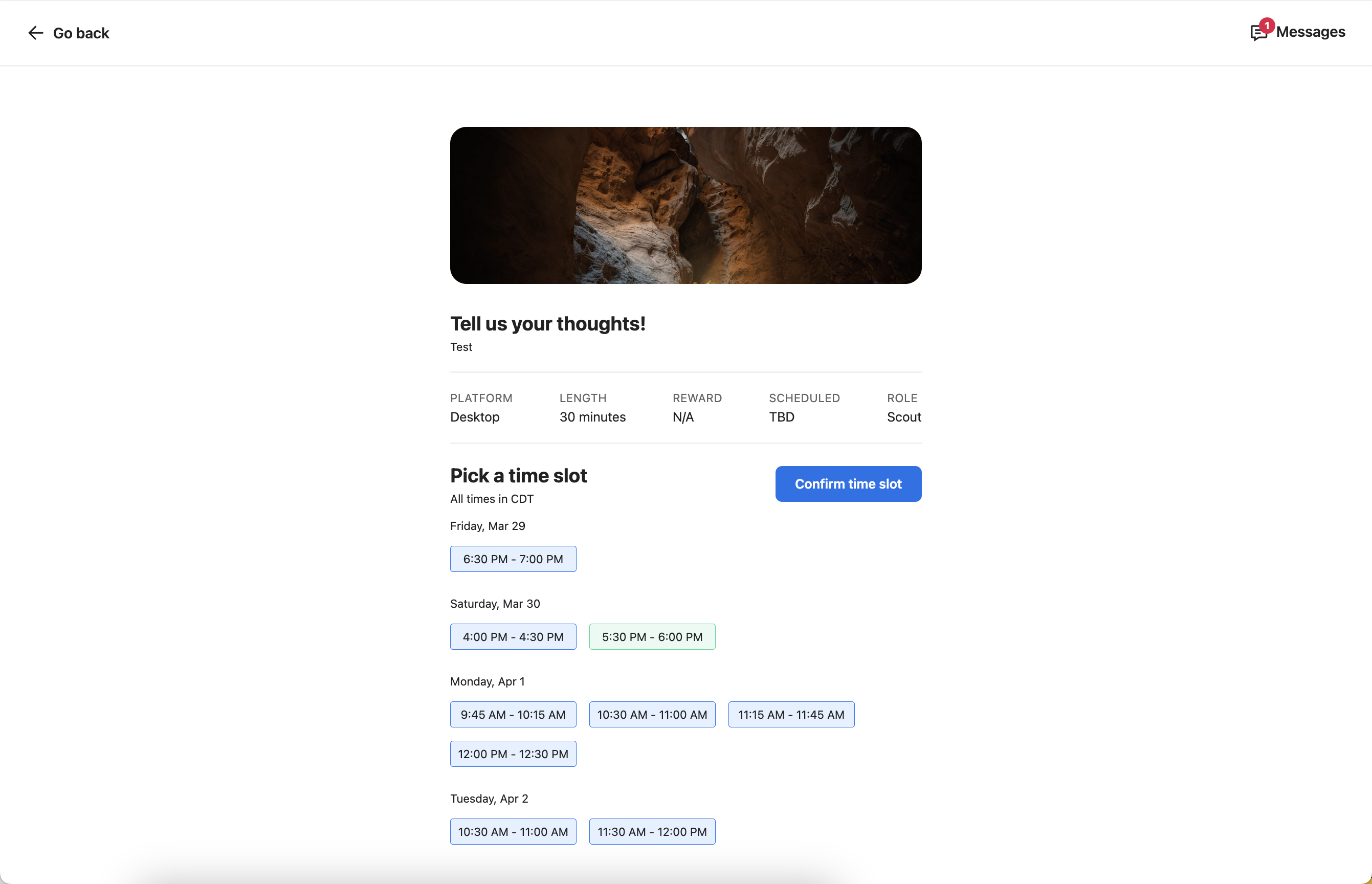
If the study leader(s) has/have pre-determined their availability with pre-booked sessions, you'll be able to select from a list of available time slots immediately after you complete your interview pre-test. Check out the steps below:
{% stepper %}
{% step %}
After you accept your study and complete the [hardware setup (pre-test) process](/interview-studies/interview-technical-requirements/interview-pre-test-scout-overview-troubleshooting.md), you'll be able to see all the available time slots that your study leader(s) has/have chosen.
{% endstep %}
{% step %}
Select the time slot you would like to reserve (*please note*: all time slots will be listed in your system’s timezone).
{% endstep %}
{% step %}
Click the **Confirm Time Slot** button to finish reserving the date and time of your interview session.
{% endstep %}
{% step %}
After booking, you will receive a scheduling confirmation email. You will also receive reminders 1 day and 1 hour before your scheduled session.
{% endstep %}
{% endstepper %}
{% hint style="info" %}
**For mobile interview:** you'll be prompted to schedule a time when you accept your invite. If you weren't, you can also navigate to your study via the app and tap "Choose time slot" to pick a time!
{% endhint %}
{% hint style="info" %}
**Note:** No more time slots available? Reach out to your study leader. They may be out of openings, or they may be able to schedule your session manually.
{% endhint %}
*Desktop:*
 *Mobile:*
 ### Manual scheduling
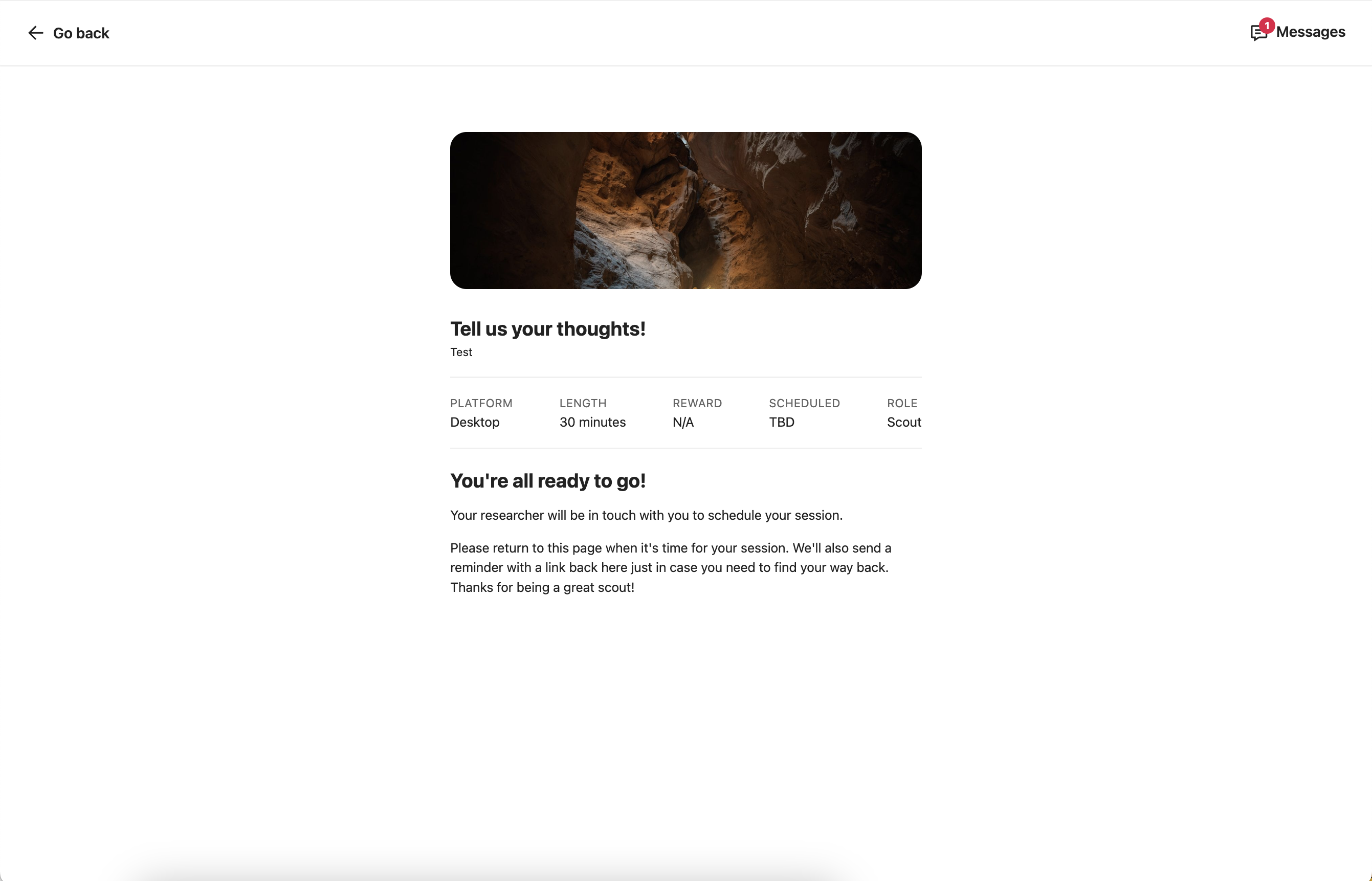
If your study leader(s) has/have chosen to **manually schedule** sessions, you won't be able to select from a predetermined list of times immediately after you complete your pre-test (see screenshot below). Instead, your study leader(s) will contact you directly via email or in the Dscout mobile app to confirm a day and time. Keep an eye out for a message in both your email inbox and Dscout mobile app.
Once your scheduled time is confirmed and your study leader(s) schedule(s) it, you’ll receive a confirmation email. You'll also receive reminder emails 1 day before your session and 1 hour before your session.
### Manual scheduling
If your study leader(s) has/have chosen to **manually schedule** sessions, you won't be able to select from a predetermined list of times immediately after you complete your pre-test (see screenshot below). Instead, your study leader(s) will contact you directly via email or in the Dscout mobile app to confirm a day and time. Keep an eye out for a message in both your email inbox and Dscout mobile app.
Once your scheduled time is confirmed and your study leader(s) schedule(s) it, you’ll receive a confirmation email. You'll also receive reminder emails 1 day before your session and 1 hour before your session.
 ## Rescheduling your interview session
How you reschedule your interview session depends on whether or not your study leader(s) has/have enabled our Automatic scheduling tool. Read more below.
### Rescheduling for Automatic sessions
If you need to reschedule your interview session and your study leader(s) has/have enabled our **Automatic scheduling tool** (reminder that this option lets you schedule your calls from a predetermined list of available time slots automatically after accepting your interview study), you can reschedule your call by following these steps.
{% hint style="info" %}
**Note:** You must do this before the day of your session. The **Reschedule** button is not available on the same day. For same-day changes, message your study leader.
{% endhint %}
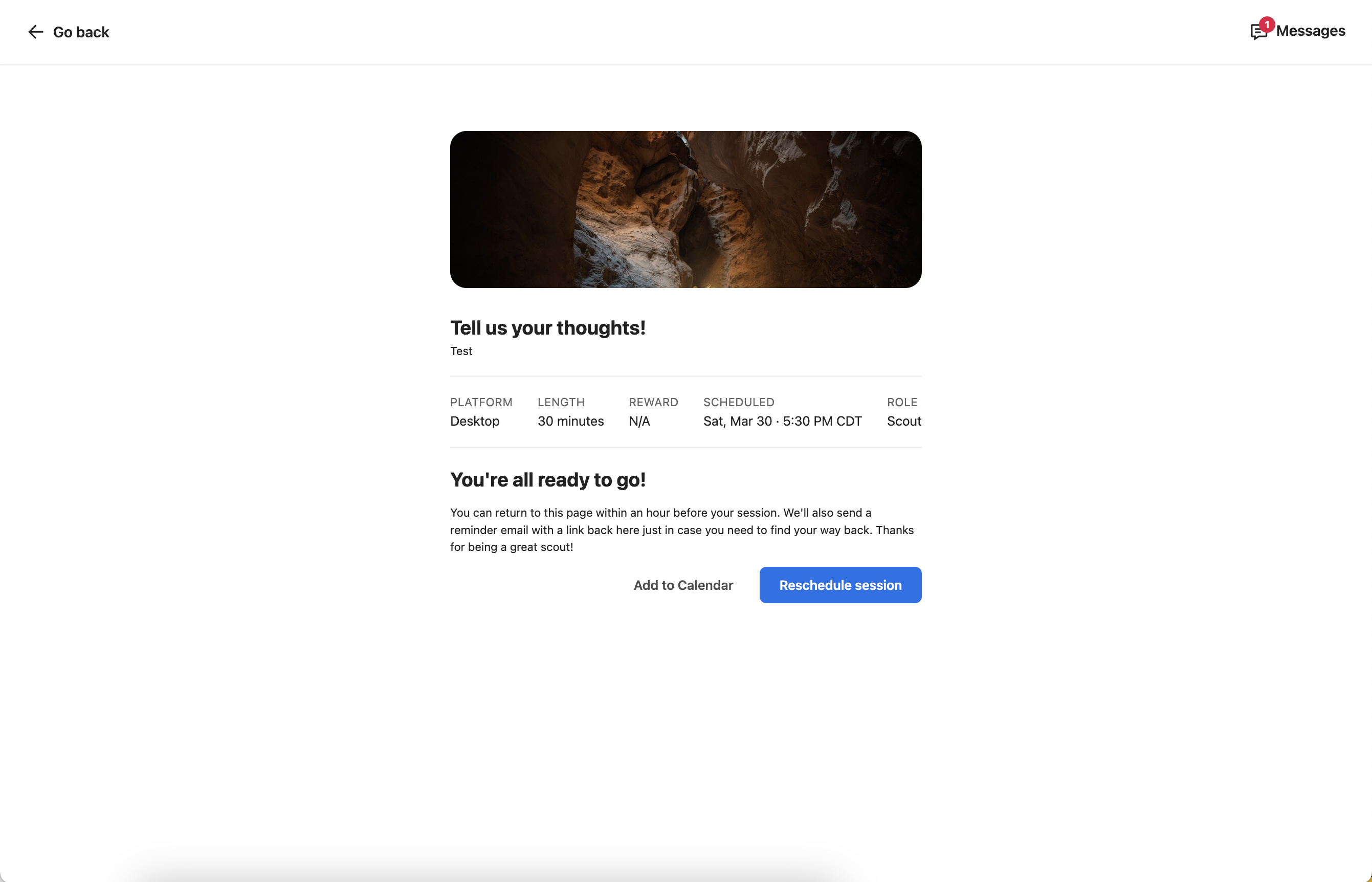
* **For desktop interview:** Navigate to your session link, located in your original invite or via the "In Progress" section of your Studies tab. Tap the blue **Reschedule** button below the "You're all ready to go!" message.
* **For mobile interview:** navigate to your study and tap the **Reschedule** button just below your original session time.
{% hint style="info" %}
**Note:** You can’t reschedule within 24 hours of your original session time. If that happens, contact your study leader.
{% endhint %}
## Rescheduling your interview session
How you reschedule your interview session depends on whether or not your study leader(s) has/have enabled our Automatic scheduling tool. Read more below.
### Rescheduling for Automatic sessions
If you need to reschedule your interview session and your study leader(s) has/have enabled our **Automatic scheduling tool** (reminder that this option lets you schedule your calls from a predetermined list of available time slots automatically after accepting your interview study), you can reschedule your call by following these steps.
{% hint style="info" %}
**Note:** You must do this before the day of your session. The **Reschedule** button is not available on the same day. For same-day changes, message your study leader.
{% endhint %}
* **For desktop interview:** Navigate to your session link, located in your original invite or via the "In Progress" section of your Studies tab. Tap the blue **Reschedule** button below the "You're all ready to go!" message.
* **For mobile interview:** navigate to your study and tap the **Reschedule** button just below your original session time.
{% hint style="info" %}
**Note:** You can’t reschedule within 24 hours of your original session time. If that happens, contact your study leader.
{% endhint %}
 ### Rescheduling for Manual sessions
If you need to reschedule your interview session and your study leader(s) has/have not enabled our **Automatic scheduling tool**, you’ll have to reschedule your session **manually**. To do this, simply contact your study leader(s) directly. You can do this by either messaging your study leader(s) in the app or by replying to your invitation or scheduling confirmation email.
## Joining your interview session
You’ll receive an email reminder exactly one hour before your scheduled call. The subject of this email will be **Scheduling reminder for ‘...’ interview study**. To join your interview session, follow the steps:
{% stepper %}
{% step %}
Access the reminder email and click the **Join Your interview session** button.
{% endstep %}
{% step %}
You may be prompted to sign in. If you are, enter your email address and password and click **Sign In**.
{% endstep %}
{% step %}
On the bottom of the interview session's detail screen, click the **Start Session** button to test your set-up one more time.
{% endstep %}
{% step %}
At this point, Dscout will check your camera, microphone, sound, and internet connection, and confirm you're using Google Chrome or Microsoft Edge. Once the checks finish, click **Get Started** to join the waiting room.
{% hint style="info" %}
**Note:** A microphone problem or a weak internet connection won't stop you from joining. If either check comes back with a warning, you'll see tips for fixing it and the button will read **Join anyway**. You can click it to enter your session—but it's worth trying the suggestions first: a weak connection affects audio and video quality, and if your microphone isn't working your moderator won't be able to hear you.
{% endhint %}
{% endstep %}
{% step %}
When your moderator(s) join(s) the call, click the **Join** button to join the call.
{% endstep %}
{% endstepper %}
{% hint style="info" %}
**For mobile interview:** simply tap the "Join session" button. Your session will begin when your moderator(s) start(s) the call.
{% endhint %}
{% hint style="info" %}
**Note:** Closed captions are available in desktop interview sessions. Use the **CC** button in the bottom-right corner after your session starts. Closed captions are not currently supported in mobile interview sessions.
{% endhint %}
Having trouble? Check out [this document](/interview-studies/interview-technical-requirements/interview-pre-test-scout-overview-troubleshooting.md) for troubleshooting interview study setup issues.
### Rescheduling for Manual sessions
If you need to reschedule your interview session and your study leader(s) has/have not enabled our **Automatic scheduling tool**, you’ll have to reschedule your session **manually**. To do this, simply contact your study leader(s) directly. You can do this by either messaging your study leader(s) in the app or by replying to your invitation or scheduling confirmation email.
## Joining your interview session
You’ll receive an email reminder exactly one hour before your scheduled call. The subject of this email will be **Scheduling reminder for ‘...’ interview study**. To join your interview session, follow the steps:
{% stepper %}
{% step %}
Access the reminder email and click the **Join Your interview session** button.
{% endstep %}
{% step %}
You may be prompted to sign in. If you are, enter your email address and password and click **Sign In**.
{% endstep %}
{% step %}
On the bottom of the interview session's detail screen, click the **Start Session** button to test your set-up one more time.
{% endstep %}
{% step %}
At this point, Dscout will check your camera, microphone, sound, and internet connection, and confirm you're using Google Chrome or Microsoft Edge. Once the checks finish, click **Get Started** to join the waiting room.
{% hint style="info" %}
**Note:** A microphone problem or a weak internet connection won't stop you from joining. If either check comes back with a warning, you'll see tips for fixing it and the button will read **Join anyway**. You can click it to enter your session—but it's worth trying the suggestions first: a weak connection affects audio and video quality, and if your microphone isn't working your moderator won't be able to hear you.
{% endhint %}
{% endstep %}
{% step %}
When your moderator(s) join(s) the call, click the **Join** button to join the call.
{% endstep %}
{% endstepper %}
{% hint style="info" %}
**For mobile interview:** simply tap the "Join session" button. Your session will begin when your moderator(s) start(s) the call.
{% endhint %}
{% hint style="info" %}
**Note:** Closed captions are available in desktop interview sessions. Use the **CC** button in the bottom-right corner after your session starts. Closed captions are not currently supported in mobile interview sessions.
{% endhint %}
Having trouble? Check out [this document](/interview-studies/interview-technical-requirements/interview-pre-test-scout-overview-troubleshooting.md) for troubleshooting interview study setup issues.
 ## Guidelines + Best Practices
* **Driving during sessions is not allowed.** It might sound obvious, but please don't interview study and drive.
* **Safety first!** Before the call, make sure to close out of any private data such as banking information, private conversations, or sensitive content.
* **Be attentive.** We understand that life still might be happening around you, but if possible, try to complete your session in a distraction-free space.
* **Keep it professional.** In many cases, clips from your interview session will be used by project teams for internal insights, share-outs, slide decks, etc.. With that in mind, please ensure you are reasonably dressed and limit the consumption of alcohol or illicit substances during your session.
* **Test your internet connection.** Your internet connection can make or break an interview session, but when it's good, you've got nothing to worry about! You'll be able to test your WiFi on the study page so you'll know whether or not you need to improve your connection. **Note:** we do not recommend using cellular data during your interview session.
---
# Agent Instructions
This documentation is published with GitBook. GitBook is the documentation platform designed so that both humans and AI agents can read, navigate, and reason over technical content effectively. Learn more at gitbook.com.
## Querying This Documentation
If you need additional information that is not directly available in this page, you can query the documentation by asking a question.
Perform an HTTP GET request on the following URL with the `ask` and `goal` query parameters:
```
GET https://participanthelp.dscout.com/interview-studies/participate-in-interview-studies/participating-in-interview-studies.md?ask=&goal=
```
`ask` is the immediate question: it should be specific, self-contained, and written in natural language.
`goal` is what the user is ultimately trying to achieve, the reason they need the answer. Sharing it helps GitBook give you a better, more relevant answer. A goal is most helpful when it describes the outcome the user wants rather than restating the question. For example, with `ask=how do I create an API token`, a goal like `automate deployments from our CI pipeline` lets GitBook tailor the answer to that use case.
The response will contain a direct answer to the question and relevant excerpts and sources from the documentation.
Use this mechanism when the answer is not explicitly present in the current page, you need clarification or additional context, or you want to retrieve related documentation sections.
## Guidelines + Best Practices
* **Driving during sessions is not allowed.** It might sound obvious, but please don't interview study and drive.
* **Safety first!** Before the call, make sure to close out of any private data such as banking information, private conversations, or sensitive content.
* **Be attentive.** We understand that life still might be happening around you, but if possible, try to complete your session in a distraction-free space.
* **Keep it professional.** In many cases, clips from your interview session will be used by project teams for internal insights, share-outs, slide decks, etc.. With that in mind, please ensure you are reasonably dressed and limit the consumption of alcohol or illicit substances during your session.
* **Test your internet connection.** Your internet connection can make or break an interview session, but when it's good, you've got nothing to worry about! You'll be able to test your WiFi on the study page so you'll know whether or not you need to improve your connection. **Note:** we do not recommend using cellular data during your interview session.
---
# Agent Instructions
This documentation is published with GitBook. GitBook is the documentation platform designed so that both humans and AI agents can read, navigate, and reason over technical content effectively. Learn more at gitbook.com.
## Querying This Documentation
If you need additional information that is not directly available in this page, you can query the documentation by asking a question.
Perform an HTTP GET request on the following URL with the `ask` and `goal` query parameters:
```
GET https://participanthelp.dscout.com/interview-studies/participate-in-interview-studies/participating-in-interview-studies.md?ask=&goal=
```
`ask` is the immediate question: it should be specific, self-contained, and written in natural language.
`goal` is what the user is ultimately trying to achieve, the reason they need the answer. Sharing it helps GitBook give you a better, more relevant answer. A goal is most helpful when it describes the outcome the user wants rather than restating the question. For example, with `ask=how do I create an API token`, a goal like `automate deployments from our CI pipeline` lets GitBook tailor the answer to that use case.
The response will contain a direct answer to the question and relevant excerpts and sources from the documentation.
Use this mechanism when the answer is not explicitly present in the current page, you need clarification or additional context, or you want to retrieve related documentation sections.