> For the complete documentation index, see [llms.txt](https://participanthelp.dscout.com/llms.txt). Markdown versions of documentation pages are available by appending `.md` to page URLs; this page is available as [Markdown](https://participanthelp.dscout.com/interview-studies/interview-technical-requirements/interview-pre-test-scout-overview-troubleshooting.md).
# Interview pre-test scout overview troubleshooting
The interview pre-test, required for participation in a desktop interview study, ensures that your system is equipped and ready for an interview session. In order to schedule a session, you'll need to successfully pass your pre-test, so it's important you do so as soon as possible after receiving your study invitation!
In the event you encounter issues while trying to pass your pre-test, we've included troubleshooting for all of the system checks below.
### Locating the pre-test
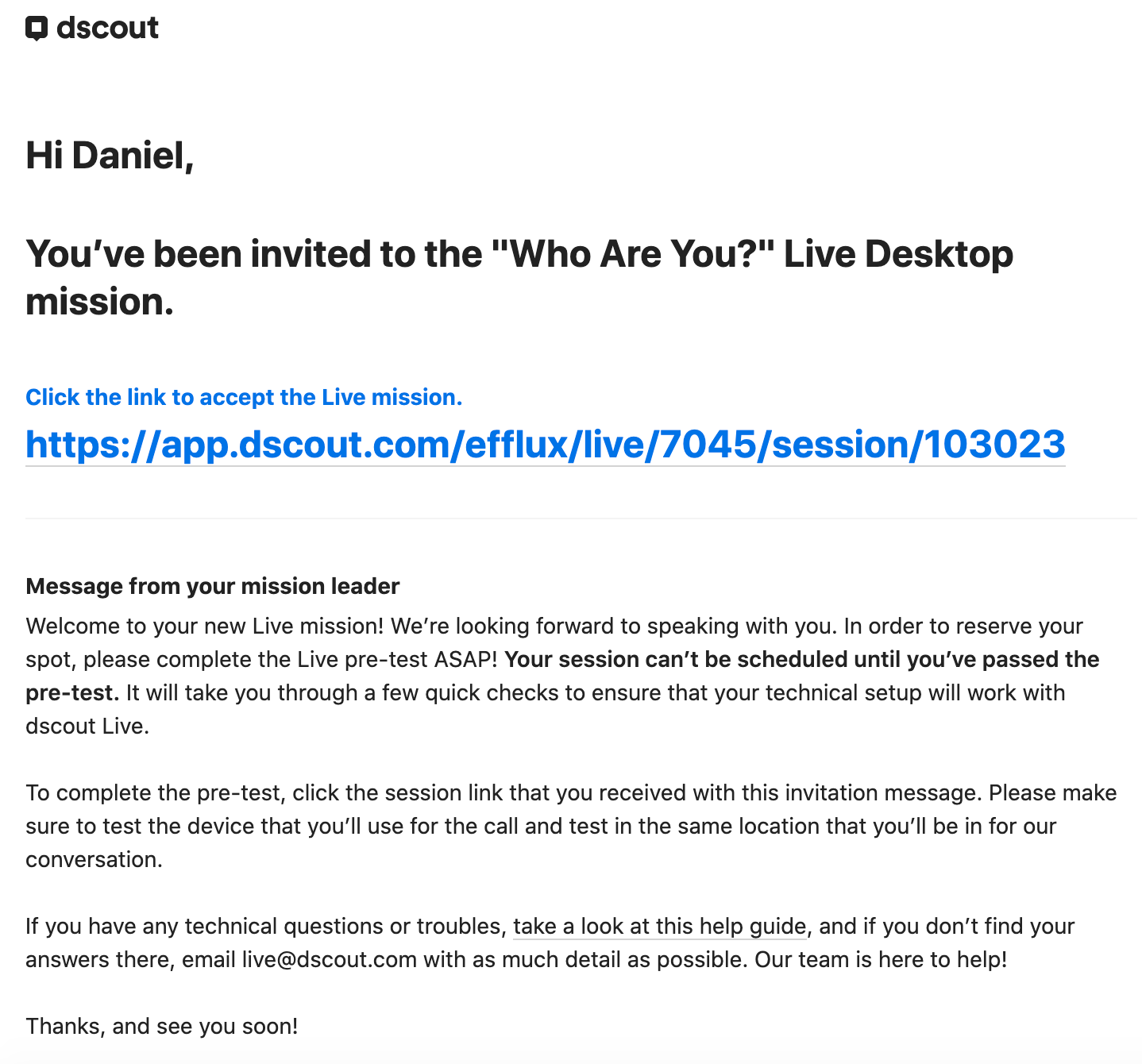
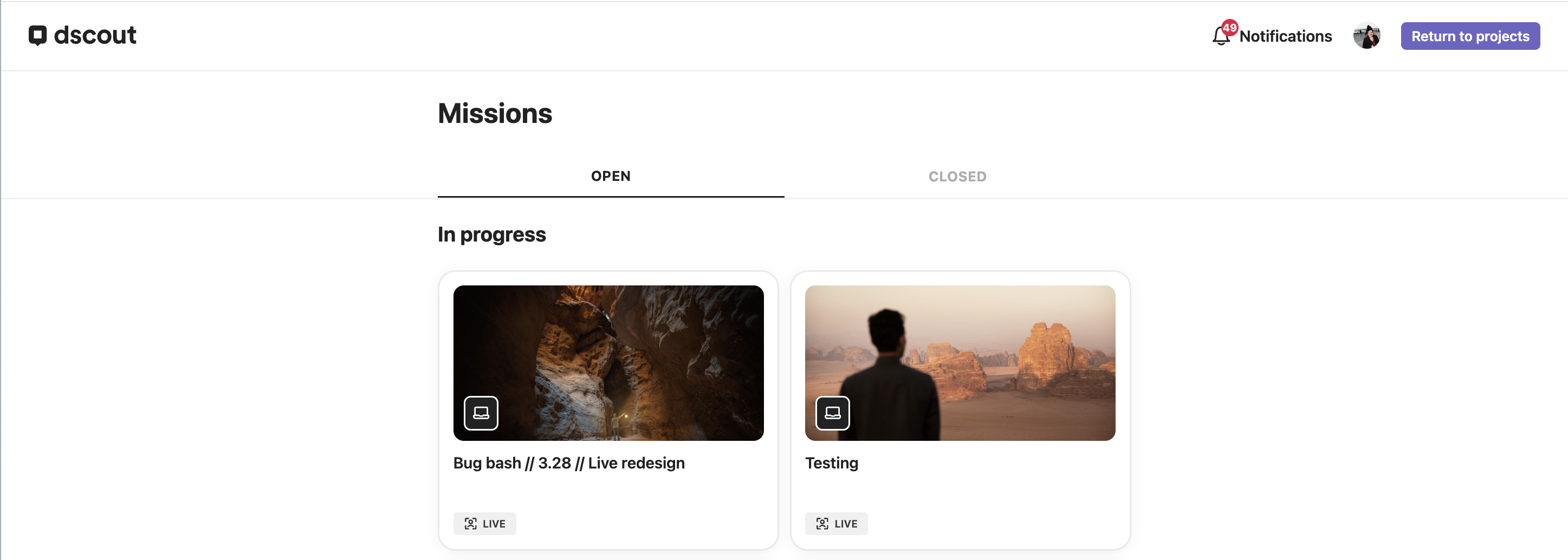
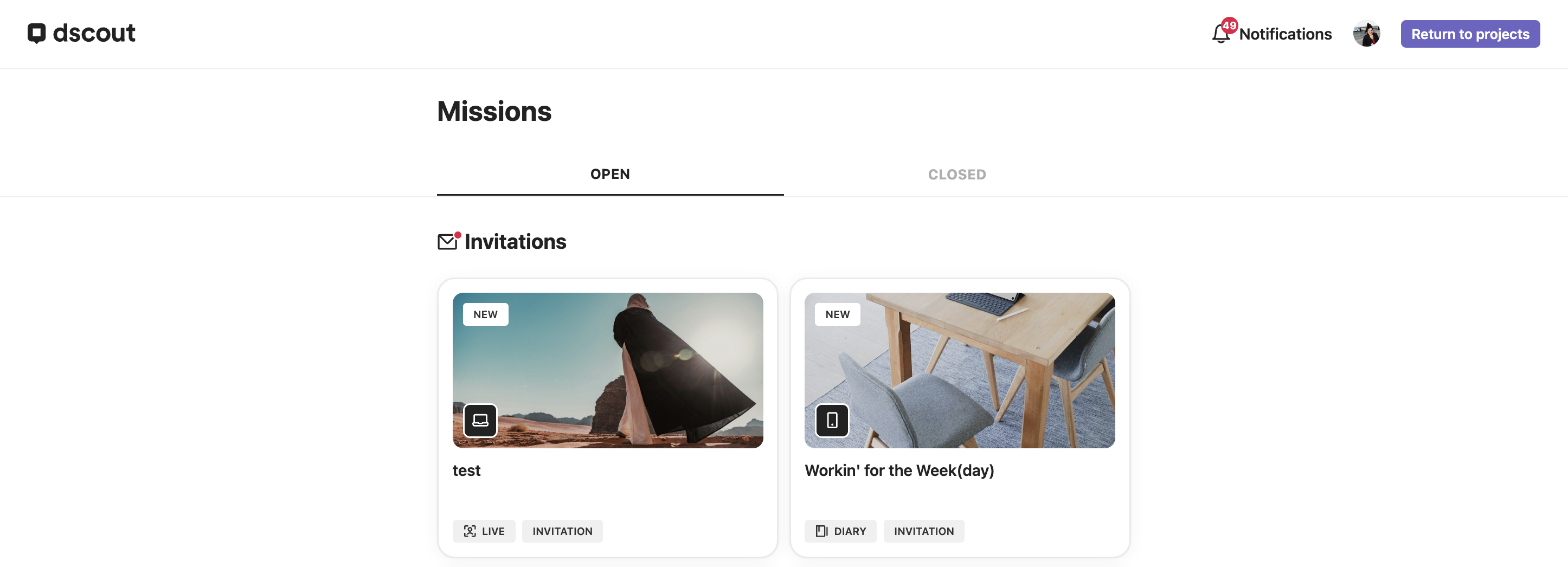
Your pre-test is contained within your interview session link, so no need to locate a separate link! All you'll need to do is open up your session link and run through the prompts. Your session link can be found in these places:
1. Your original invitation email
2. By logging into [app.dscout.com](https://app.dscout.com/) with the email address your invitation was sent to. If you've accepted your invitation, the study will appear in the "In Progress" tab. If you haven't accepted your invitation, the study will appear in your "Invites" tab. Simply tap on your study to arrive at your session link!
#### *Invitation email*
 #### *In Progress tab*
 #### *Invites tab*
 ### Completing the pre-test
1. Navigate to your session link (instructions above for locating your link!) using a Google Chrome or Microsoft Edge browser.
2. Tap on the button at the bottom of the page that says "Start Hardware Setup." (If you haven't accepted your invitation, you will first see a button that says "Accept Study.")
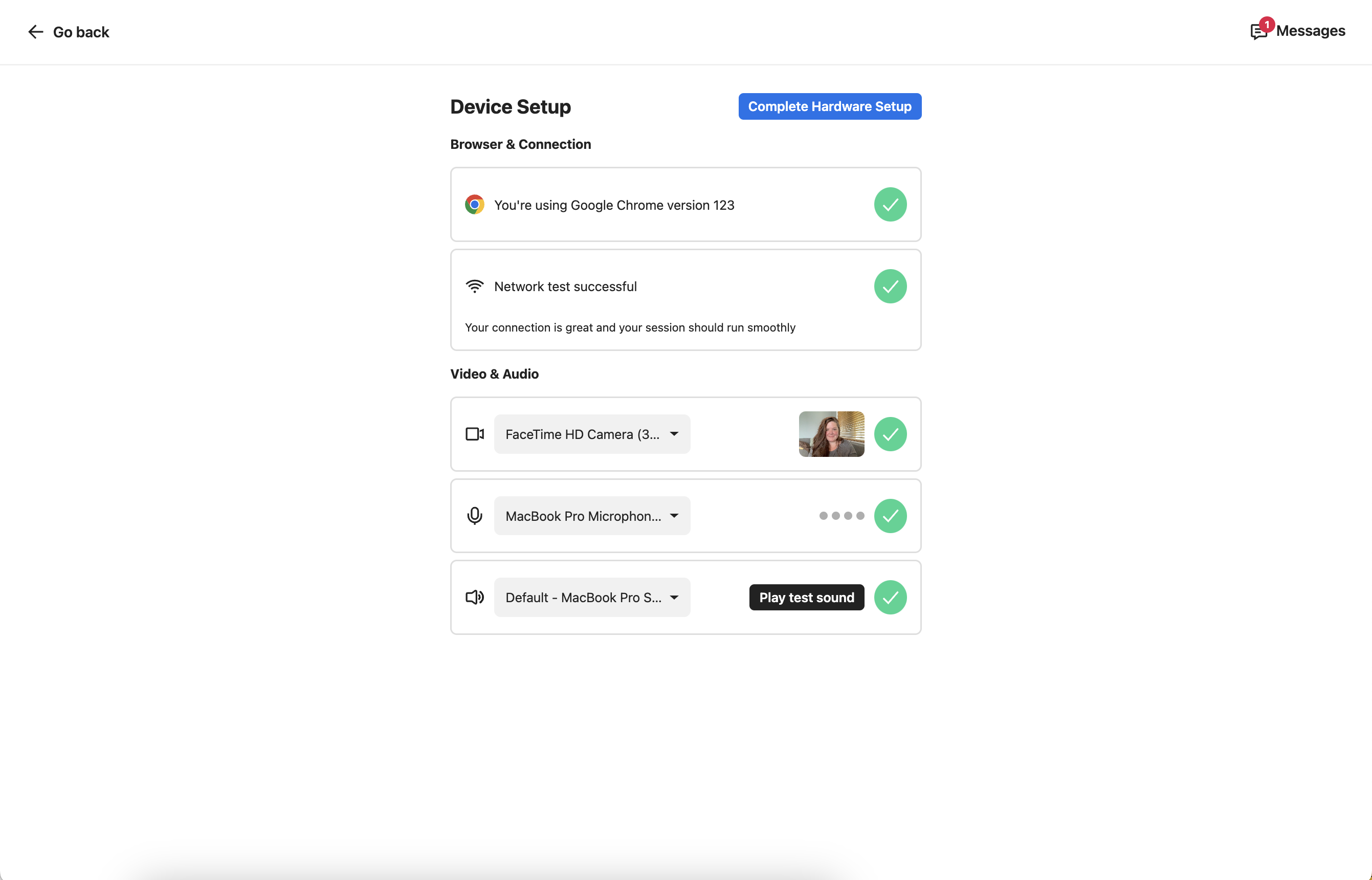
3. This will take you to a page where your camera, microphone, speakers, and connection will be tested for compatibility. **Be sure to grant camera and microphone permissions when prompted!**
4. After passing the tests, tap "Complete Hardware Setup" at the top right of the page
*Hardware setup*
### Completing the pre-test
1. Navigate to your session link (instructions above for locating your link!) using a Google Chrome or Microsoft Edge browser.
2. Tap on the button at the bottom of the page that says "Start Hardware Setup." (If you haven't accepted your invitation, you will first see a button that says "Accept Study.")
3. This will take you to a page where your camera, microphone, speakers, and connection will be tested for compatibility. **Be sure to grant camera and microphone permissions when prompted!**
4. After passing the tests, tap "Complete Hardware Setup" at the top right of the page
*Hardware setup*
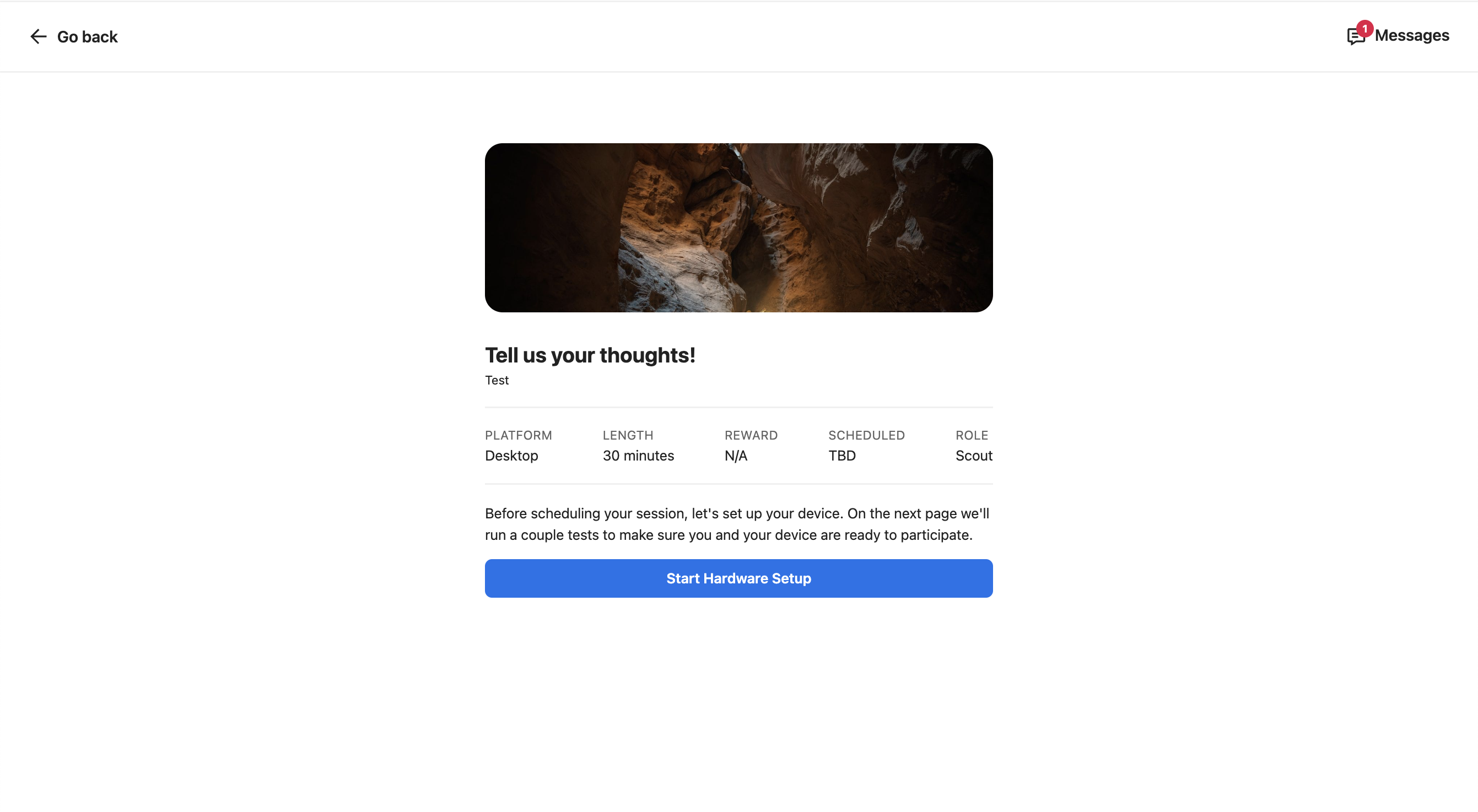 *Pre-Test (Hardware Setup)*
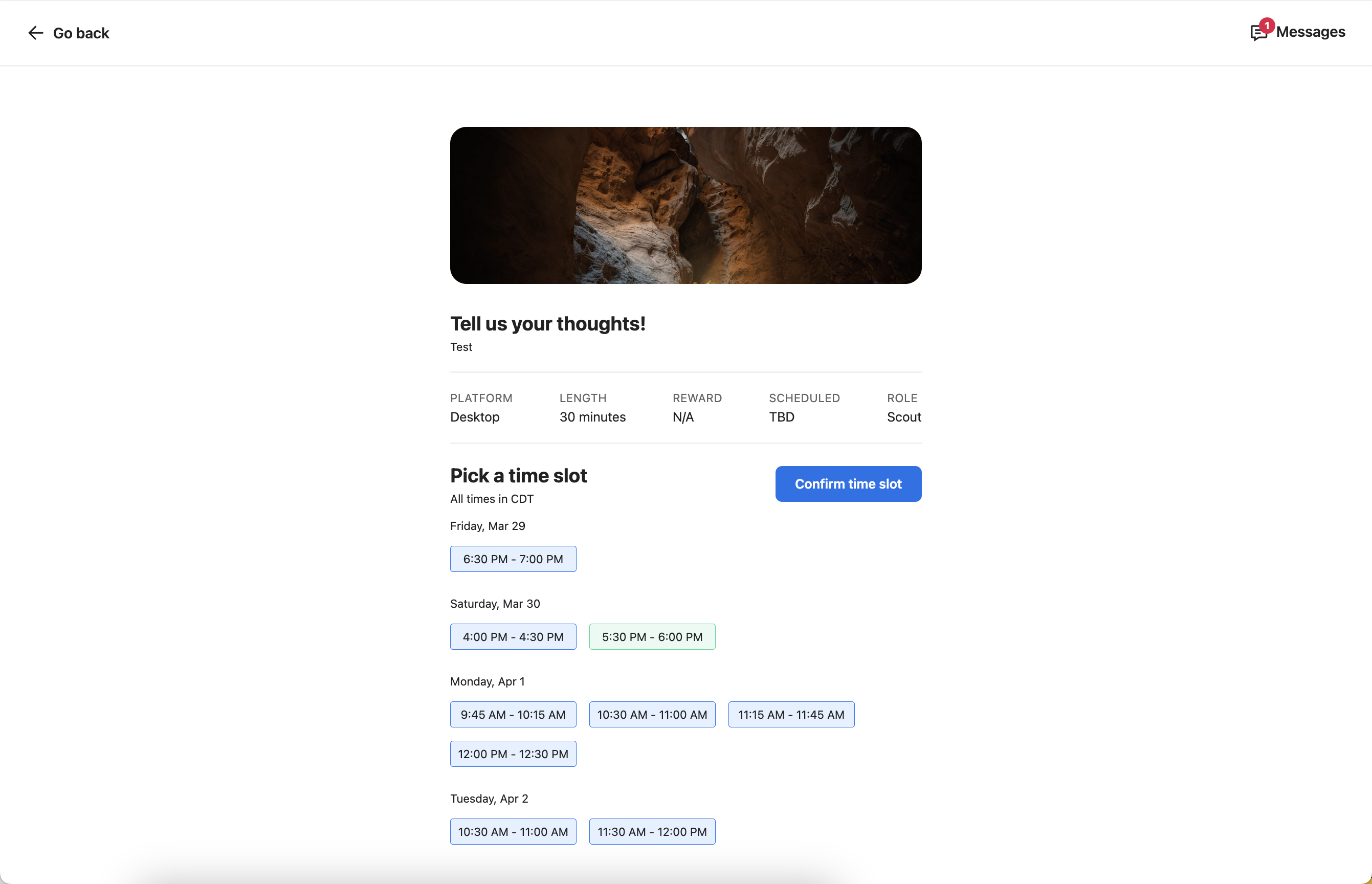
 *Scheduler*
 ### Browser compatibility
Google Chrome and Microsoft Edge are the only browsers that are compatible with interview studies, so you'll need to install one of these in order to have your video conversation.
* If you've downloaded Google Chrome or Microsoft Edge, be sure to open your session link/pre-test in a Chrome or Edge browser. Otherwise, you'll continue to see the Chrome or Edge pre-test error.
### Video/Audio troubleshooting
Interview study is a video research tool, so you'll need a laptop/desktop with a working camera and microphone in order to complete a desktop interview session.
* For general camera, microphone, and sound/headphone troubleshooting, click [here](/interview-studies/interview-troubleshooting/camera-microphone-and-sound-issues-for-interviews.md).
* See how to grant audio & video permissions [here.](/interview-studies/interview-troubleshooting/interview-camera-and-microphone-permissions-and-access-troubleshooting.md)
### Bandwidth
Bandwidth is how we test the strength of your internet connection. A weak connection won't stop you from joining your session, but it can affect audio and video quality, so it's worth testing on the same network you'll use for your session. Here are some recommendations for improving your internet connection:
* Close out of all other programs and browsing sessions on your computer.
* Move closer to your router.
* Connect to your internet via ethernet cable.
### Firewall
If you’re using an antivirus or firewall software, you'll need to ensure Chrome or Edge and Dscout are trusted/allowed by these programs.
* See how to troubleshoot firewall issues [here](/troubleshooting/troubleshooting-firewall-issues.md).
---
# Agent Instructions
This documentation is published with GitBook. GitBook is the documentation platform designed so that both humans and AI agents can read, navigate, and reason over technical content effectively. Learn more at gitbook.com.
## Querying This Documentation
If you need additional information that is not directly available in this page, you can query the documentation by asking a question.
Perform an HTTP GET request on the following URL with the `ask` and `goal` query parameters:
```
GET https://participanthelp.dscout.com/interview-studies/interview-technical-requirements/interview-pre-test-scout-overview-troubleshooting.md?ask=&goal=
```
`ask` is the immediate question: it should be specific, self-contained, and written in natural language.
`goal` is what the user is ultimately trying to achieve, the reason they need the answer. Sharing it helps GitBook give you a better, more relevant answer. A goal is most helpful when it describes the outcome the user wants rather than restating the question. For example, with `ask=how do I create an API token`, a goal like `automate deployments from our CI pipeline` lets GitBook tailor the answer to that use case.
The response will contain a direct answer to the question and relevant excerpts and sources from the documentation.
Use this mechanism when the answer is not explicitly present in the current page, you need clarification or additional context, or you want to retrieve related documentation sections.
### Browser compatibility
Google Chrome and Microsoft Edge are the only browsers that are compatible with interview studies, so you'll need to install one of these in order to have your video conversation.
* If you've downloaded Google Chrome or Microsoft Edge, be sure to open your session link/pre-test in a Chrome or Edge browser. Otherwise, you'll continue to see the Chrome or Edge pre-test error.
### Video/Audio troubleshooting
Interview study is a video research tool, so you'll need a laptop/desktop with a working camera and microphone in order to complete a desktop interview session.
* For general camera, microphone, and sound/headphone troubleshooting, click [here](/interview-studies/interview-troubleshooting/camera-microphone-and-sound-issues-for-interviews.md).
* See how to grant audio & video permissions [here.](/interview-studies/interview-troubleshooting/interview-camera-and-microphone-permissions-and-access-troubleshooting.md)
### Bandwidth
Bandwidth is how we test the strength of your internet connection. A weak connection won't stop you from joining your session, but it can affect audio and video quality, so it's worth testing on the same network you'll use for your session. Here are some recommendations for improving your internet connection:
* Close out of all other programs and browsing sessions on your computer.
* Move closer to your router.
* Connect to your internet via ethernet cable.
### Firewall
If you’re using an antivirus or firewall software, you'll need to ensure Chrome or Edge and Dscout are trusted/allowed by these programs.
* See how to troubleshoot firewall issues [here](/troubleshooting/troubleshooting-firewall-issues.md).
---
# Agent Instructions
This documentation is published with GitBook. GitBook is the documentation platform designed so that both humans and AI agents can read, navigate, and reason over technical content effectively. Learn more at gitbook.com.
## Querying This Documentation
If you need additional information that is not directly available in this page, you can query the documentation by asking a question.
Perform an HTTP GET request on the following URL with the `ask` and `goal` query parameters:
```
GET https://participanthelp.dscout.com/interview-studies/interview-technical-requirements/interview-pre-test-scout-overview-troubleshooting.md?ask=&goal=
```
`ask` is the immediate question: it should be specific, self-contained, and written in natural language.
`goal` is what the user is ultimately trying to achieve, the reason they need the answer. Sharing it helps GitBook give you a better, more relevant answer. A goal is most helpful when it describes the outcome the user wants rather than restating the question. For example, with `ask=how do I create an API token`, a goal like `automate deployments from our CI pipeline` lets GitBook tailor the answer to that use case.
The response will contain a direct answer to the question and relevant excerpts and sources from the documentation.
Use this mechanism when the answer is not explicitly present in the current page, you need clarification or additional context, or you want to retrieve related documentation sections.