> For the complete documentation index, see [llms.txt](https://participanthelp.dscout.com/llms.txt). Markdown versions of documentation pages are available by appending `.md` to page URLs; this page is available as [Markdown](https://participanthelp.dscout.com/diary-studies/participate-in-diary-studies/participating-in-diary-studies.md).
# Participating in diary studies
So you've been invited to your first diary study—congrats!
Not sure what a study is or what all these Dscout terms mean? Check out [this article](/getting-started/dscout-overview/a-scouts-guide-to-dscout-lingo.md) for a rundown of our Dscout lingo!
## How to accept your invitation
To accept your invitation to the study, follow these steps:
{% stepper %}
{% step %}
Log into your account on the Dscout mobile app.
{% endstep %}
{% step %}
Find the tab labeled **Studies** (rocket icon) on the bottom navigation bar and tap on it.
{% endstep %}
{% step %}
Find the study you’ve been invited to under the **Invites** section and tap on the image to continue.
{% endstep %}
{% step %}
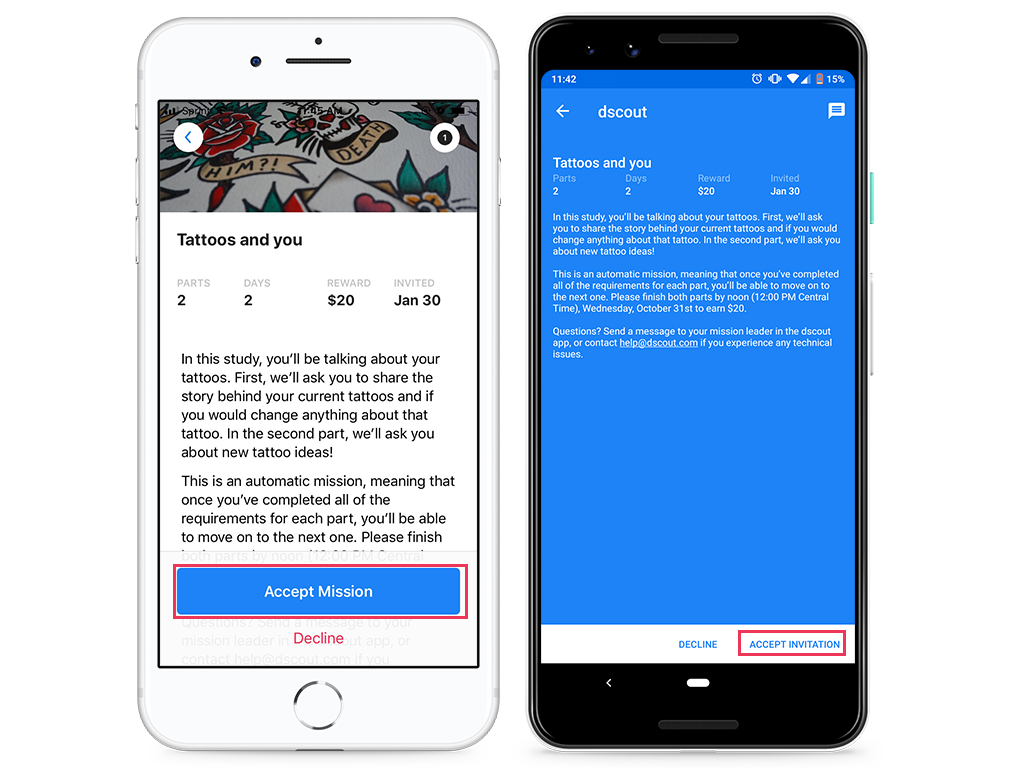
When you tap on the card, you’ll land on the **Study Overview** page. You can read up more about the study details, instructions, structure, and invite date here.
{% endstep %}
{% step %}
To accept the invitation and get started, tap on **Accept Invitation**.
{% endstep %}
{% step %}
To decline the invitation, tap on **Decline**.
{% endstep %}
{% step %}
If you want to message your study leader, tap on the **messaging icon** in the top right corner of the screen. Any message you send here will go directly to your study leader.
{% endstep %}
{% endstepper %}
 ## Who's your study leader?
Study leaders are the folks in charge. They're the ones reviewing your entries and making sure you've completed everything you need to in order to be paid. They're also available in case you have questions that aren't answered in the study overview or activity instructions, or if you have trouble completing a study. You can contact yours by tapping the "Messages" tab while viewing a study.
Sometimes, the study leader is a representative of Dscout. Other times, your study leader could be someone from a company that is using Dscout for their own research purposes.
## Requirements for getting paid
If you follow the study instructions and complete all the required activities and entries (on time and thoughtfully, of course!), we’ll take the time to review your entries. So long as you did everything that was asked of you and provided quality responses, your study leader will mark you as approved for payments!
## How to find your study instructions
Since your payment depends on you following all of the study instructions, it's crucial to know where your instructions are located: within your Study Overview, and in each individual activity. We recommend that you check out the **Study Overview** to get the full picture, deadlines, and details for your study and the **activity instructions** for the finer details about how to complete individual entries.
#### Android
{% stepper %}
{% step %}
Access your **In Progress tab** on the bottom of your app’s navigation bar.
{% endstep %}
{% step %}
Find the study in question and tap on it.
{% endstep %}
{% step %}
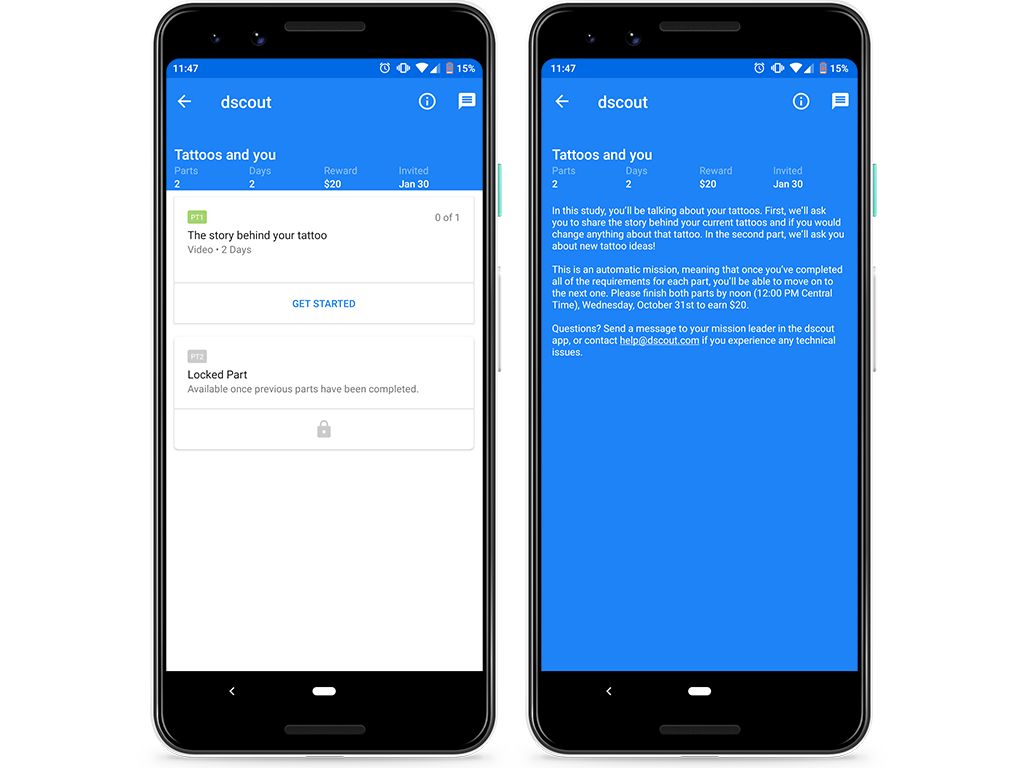
Here, you’ll notice the number of activities, days, reward amount, and number of messages on the top of the screen beneath the study title.
{% endstep %}
{% step %}
Tap on the **Information icon** on the top right corner of your screen (next to the **Messages icon**) to display your full study overview.
{% endstep %}
{% step %}
The study overview should display more information about the study, including more detailed instructions and deadlines.
{% endstep %}
{% endstepper %}
## Who's your study leader?
Study leaders are the folks in charge. They're the ones reviewing your entries and making sure you've completed everything you need to in order to be paid. They're also available in case you have questions that aren't answered in the study overview or activity instructions, or if you have trouble completing a study. You can contact yours by tapping the "Messages" tab while viewing a study.
Sometimes, the study leader is a representative of Dscout. Other times, your study leader could be someone from a company that is using Dscout for their own research purposes.
## Requirements for getting paid
If you follow the study instructions and complete all the required activities and entries (on time and thoughtfully, of course!), we’ll take the time to review your entries. So long as you did everything that was asked of you and provided quality responses, your study leader will mark you as approved for payments!
## How to find your study instructions
Since your payment depends on you following all of the study instructions, it's crucial to know where your instructions are located: within your Study Overview, and in each individual activity. We recommend that you check out the **Study Overview** to get the full picture, deadlines, and details for your study and the **activity instructions** for the finer details about how to complete individual entries.
#### Android
{% stepper %}
{% step %}
Access your **In Progress tab** on the bottom of your app’s navigation bar.
{% endstep %}
{% step %}
Find the study in question and tap on it.
{% endstep %}
{% step %}
Here, you’ll notice the number of activities, days, reward amount, and number of messages on the top of the screen beneath the study title.
{% endstep %}
{% step %}
Tap on the **Information icon** on the top right corner of your screen (next to the **Messages icon**) to display your full study overview.
{% endstep %}
{% step %}
The study overview should display more information about the study, including more detailed instructions and deadlines.
{% endstep %}
{% endstepper %}
 #### iOS
{% stepper %}
{% step %}
Access your In Progress tab on the bottom of your app’s navigation bar.
{% endstep %}
{% step %}
Find the study in question and tap on it.
{% endstep %}
{% step %}
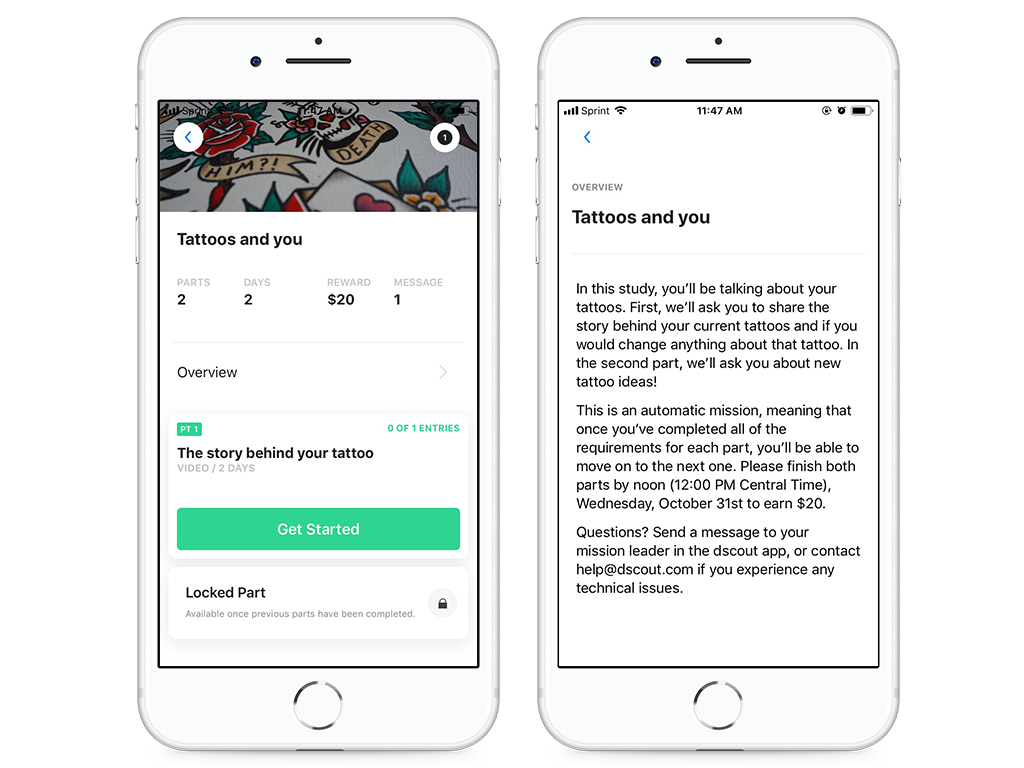
Under the study title, you’ll see the number of activities, number of expected days, the study reward, and the number of messages.
{% endstep %}
{% step %}
Tap on Overview to display your full study overview.
{% endstep %}
{% step %}
The study overview should display more information about the study, including more detailed instructions and deadlines.
{% endstep %}
{% endstepper %}
#### iOS
{% stepper %}
{% step %}
Access your In Progress tab on the bottom of your app’s navigation bar.
{% endstep %}
{% step %}
Find the study in question and tap on it.
{% endstep %}
{% step %}
Under the study title, you’ll see the number of activities, number of expected days, the study reward, and the number of messages.
{% endstep %}
{% step %}
Tap on Overview to display your full study overview.
{% endstep %}
{% step %}
The study overview should display more information about the study, including more detailed instructions and deadlines.
{% endstep %}
{% endstepper %}
 ## How to submit an entry
Submitting entries is a breeze! Check out the steps below:
{% stepper %}
{% step %}
To start an entry, tap the "Get Started" button. This will say "New entry" after you've submitted an entry for the activity you're working on.
{% endstep %}
{% step %}
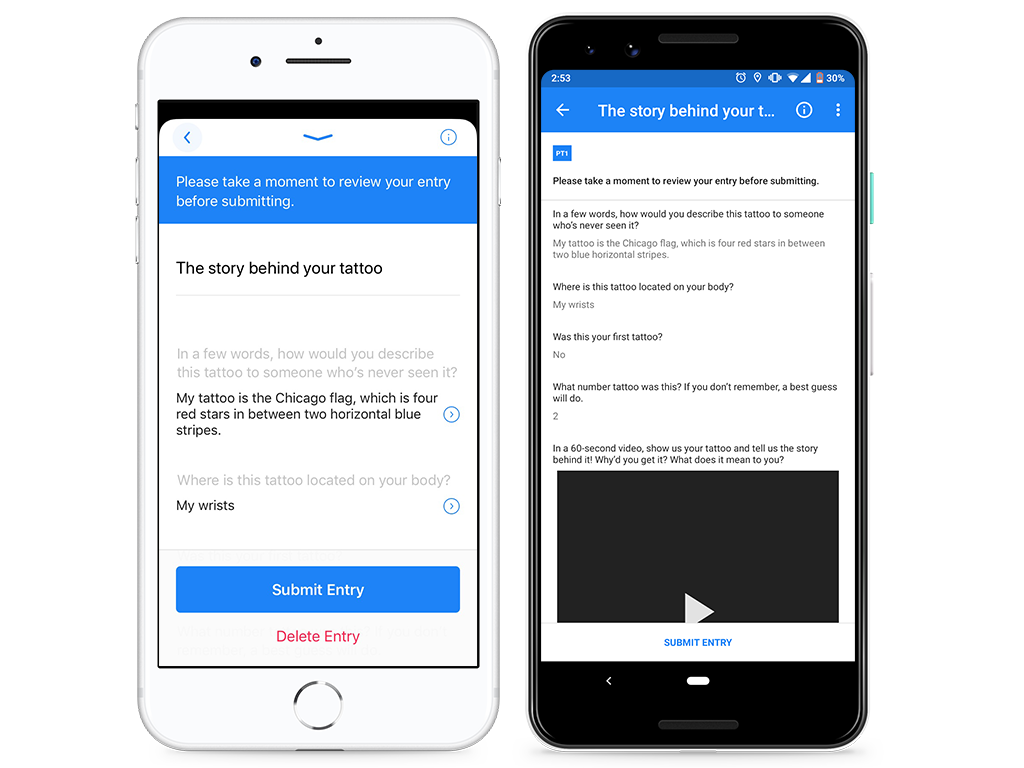
After you’re done answering all the questions in an activity, you’ll be given the opportunity to review your entry before you submit it. Check out the **Review Entry** screen below.
{% endstep %}
{% step %}
Submit your entry by tapping on the **Submit Entry** button on the bottom of your screen.
{% endstep %}
{% step %}
If the activity you're working on requires more than one entry, simply tap the **New Entry** button to get started on another one!
{% endstep %}
{% endstepper %}
Once you submit an entry, you won't be able to change your answers for that entry. You can, however, submit an additional entry for the activity with the updated information. There is no limit to how many entries you can submit.
## How to submit an entry
Submitting entries is a breeze! Check out the steps below:
{% stepper %}
{% step %}
To start an entry, tap the "Get Started" button. This will say "New entry" after you've submitted an entry for the activity you're working on.
{% endstep %}
{% step %}
After you’re done answering all the questions in an activity, you’ll be given the opportunity to review your entry before you submit it. Check out the **Review Entry** screen below.
{% endstep %}
{% step %}
Submit your entry by tapping on the **Submit Entry** button on the bottom of your screen.
{% endstep %}
{% step %}
If the activity you're working on requires more than one entry, simply tap the **New Entry** button to get started on another one!
{% endstep %}
{% endstepper %}
Once you submit an entry, you won't be able to change your answers for that entry. You can, however, submit an additional entry for the activity with the updated information. There is no limit to how many entries you can submit.
 ## Why is the next activity still locked?
This depends on if your study is a Manual study or an Automatic study. Read more on the difference between the two below:
#### Manual
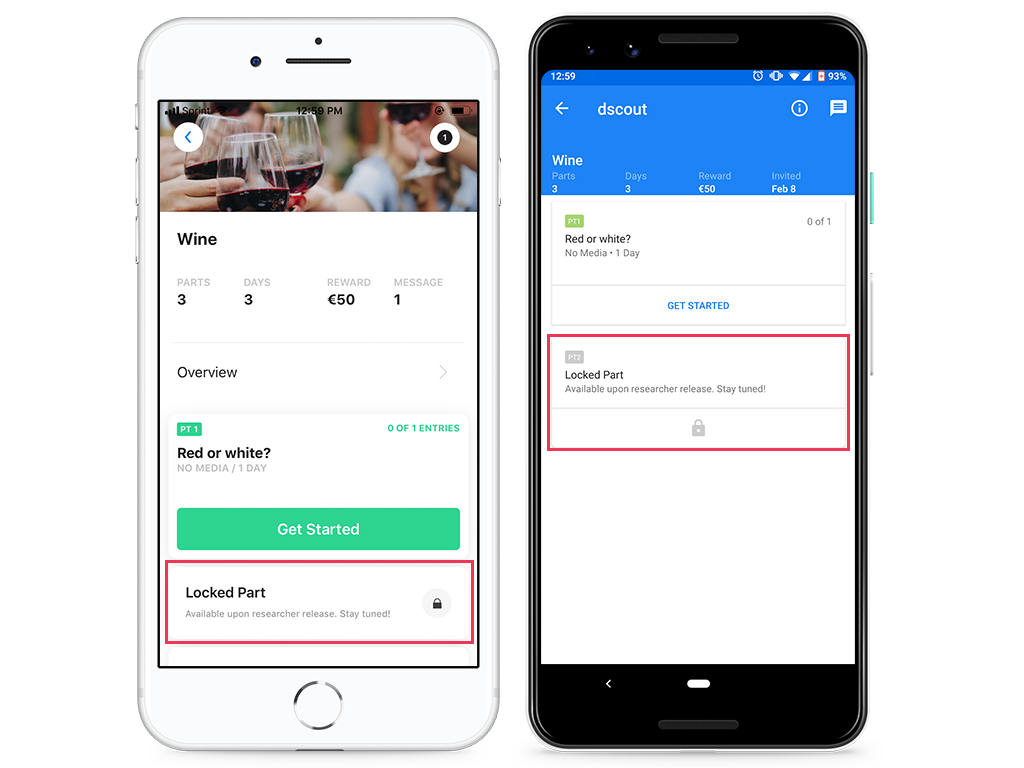
The next activity of your study will be locked until a specific date and time and can only be unlocked by your study leader. Manual studies will display "Available upon researcher release. Stay tuned!" on the locked activity. See below:
## Why is the next activity still locked?
This depends on if your study is a Manual study or an Automatic study. Read more on the difference between the two below:
#### Manual
The next activity of your study will be locked until a specific date and time and can only be unlocked by your study leader. Manual studies will display "Available upon researcher release. Stay tuned!" on the locked activity. See below:
 If your study leader hasn't unlocked an activity for you and the communicated deadline is approaching, be sure to send them a message. Read on in the next section for how to do this!
#### Automatic studies
The next activity will open immediately after you submit all the required entries in the previous activity. To locate the number of required entries, look at the numbers just to the right of the activity label; this will say something like "0 of 1 entries" or "1 of 4 entries." Once the numbers match, your next activity will unlock!
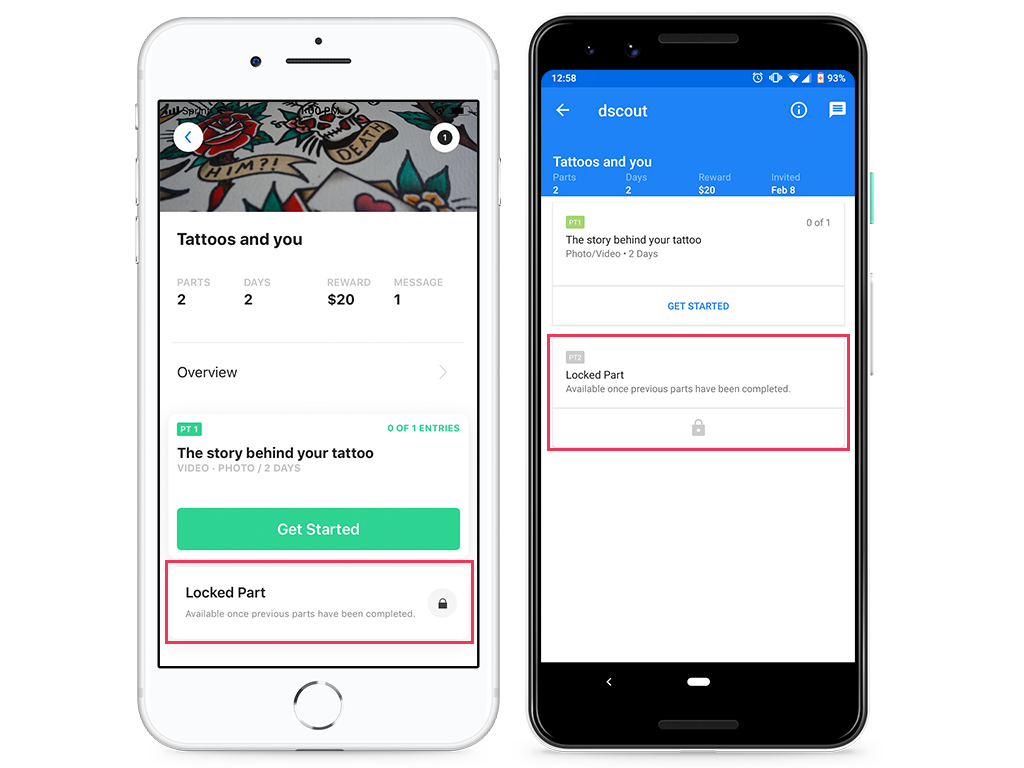
These types of studies allow you to finish the study at your own pace. Automatic studies will display "Available once previous activities have been completed" on the locked activity. See below:
If your study leader hasn't unlocked an activity for you and the communicated deadline is approaching, be sure to send them a message. Read on in the next section for how to do this!
#### Automatic studies
The next activity will open immediately after you submit all the required entries in the previous activity. To locate the number of required entries, look at the numbers just to the right of the activity label; this will say something like "0 of 1 entries" or "1 of 4 entries." Once the numbers match, your next activity will unlock!
These types of studies allow you to finish the study at your own pace. Automatic studies will display "Available once previous activities have been completed" on the locked activity. See below:
 ## Messaging your study leader
To message your study leader, follow the steps below:
{% stepper %}
{% step %}
Find the study in the **In Progress** tab and tap on it. Don't see your study? Check out our **Pro tip** below for information on accessing closed studies.
{% endstep %}
{% step %}
Tap on the **Messages** icon on the top-right corner of your screen. (*Please note*: the **Messages** icon will look slightly different depending on your mobile device’s operating system. For Android devices, the icon will resemble a dialogue box whereas iOS devices will display more of a bubble icon with a number in it. See below).
{% endstep %}
{% endstepper %}
**Pro tip:** If you don’t see your study in this tab, it probably means your study leader closed it. You can still access closed studies to message your study leader. Messaging in closed studies functions the same way as messaging in studies that are in progress by navigating to the "Closed studies" or "Archived studies" tab by scrolling to the bottom of your "In Progress" page.
## Commenting on a diary entry
If you need to leave a comment on an entry you've already submitted, you can do so directly from the Dscout app.
**To comment on a diary entry:**
{% stepper %}
{% step %}
In the diary study, locate the activity that contains the entry you want to comment on.
{% endstep %}
{% step %}
Tap **View all**. A list of your entries is displayed.
{% endstep %}
{% step %}
Tap the entry you want to comment on to open it. The entry's details are displayed.
{% endstep %}
{% step %}
Tap in the comment field at the bottom of the screen to write your comment. Then, tap the **Send** button.
{% endstep %}
{% endstepper %}
Now, your comment is added to the entry and your study leader will be able to review it on their end.
## Participating in a desktop activity diary study
You may be invited to a study that includes a desktop activity; this means that instead of submitting a Diary entry from your mobile app, you'll complete it on a desktop computer or laptop instead! From the mobile app, you'll start the entry and have a "magic link" sent to you via email. Open up that link on a computer, run through the device setup, and get going on your entry from your computer!
All you need is a desktop or laptop computer with a working camera and microphone, and a Google Chrome or Microsoft Edge browser. There's **nothing to install**—desktop diary activities don't require the Dscout browser extension.
Running into trouble getting started? Check out [this article](/diary-studies/diary-troubleshooting.md) for some general troubleshooting steps on desktop activities.
---
# Agent Instructions
This documentation is published with GitBook. GitBook is the documentation platform designed so that both humans and AI agents can read, navigate, and reason over technical content effectively. Learn more at gitbook.com.
## Querying This Documentation
If you need additional information that is not directly available in this page, you can query the documentation by asking a question.
Perform an HTTP GET request on the following URL with the `ask` and `goal` query parameters:
```
GET https://participanthelp.dscout.com/diary-studies/participate-in-diary-studies/participating-in-diary-studies.md?ask=&goal=
```
`ask` is the immediate question: it should be specific, self-contained, and written in natural language.
`goal` is what the user is ultimately trying to achieve, the reason they need the answer. Sharing it helps GitBook give you a better, more relevant answer. A goal is most helpful when it describes the outcome the user wants rather than restating the question. For example, with `ask=how do I create an API token`, a goal like `automate deployments from our CI pipeline` lets GitBook tailor the answer to that use case.
The response will contain a direct answer to the question and relevant excerpts and sources from the documentation.
Use this mechanism when the answer is not explicitly present in the current page, you need clarification or additional context, or you want to retrieve related documentation sections.
## Messaging your study leader
To message your study leader, follow the steps below:
{% stepper %}
{% step %}
Find the study in the **In Progress** tab and tap on it. Don't see your study? Check out our **Pro tip** below for information on accessing closed studies.
{% endstep %}
{% step %}
Tap on the **Messages** icon on the top-right corner of your screen. (*Please note*: the **Messages** icon will look slightly different depending on your mobile device’s operating system. For Android devices, the icon will resemble a dialogue box whereas iOS devices will display more of a bubble icon with a number in it. See below).
{% endstep %}
{% endstepper %}
**Pro tip:** If you don’t see your study in this tab, it probably means your study leader closed it. You can still access closed studies to message your study leader. Messaging in closed studies functions the same way as messaging in studies that are in progress by navigating to the "Closed studies" or "Archived studies" tab by scrolling to the bottom of your "In Progress" page.
## Commenting on a diary entry
If you need to leave a comment on an entry you've already submitted, you can do so directly from the Dscout app.
**To comment on a diary entry:**
{% stepper %}
{% step %}
In the diary study, locate the activity that contains the entry you want to comment on.
{% endstep %}
{% step %}
Tap **View all**. A list of your entries is displayed.
{% endstep %}
{% step %}
Tap the entry you want to comment on to open it. The entry's details are displayed.
{% endstep %}
{% step %}
Tap in the comment field at the bottom of the screen to write your comment. Then, tap the **Send** button.
{% endstep %}
{% endstepper %}
Now, your comment is added to the entry and your study leader will be able to review it on their end.
## Participating in a desktop activity diary study
You may be invited to a study that includes a desktop activity; this means that instead of submitting a Diary entry from your mobile app, you'll complete it on a desktop computer or laptop instead! From the mobile app, you'll start the entry and have a "magic link" sent to you via email. Open up that link on a computer, run through the device setup, and get going on your entry from your computer!
All you need is a desktop or laptop computer with a working camera and microphone, and a Google Chrome or Microsoft Edge browser. There's **nothing to install**—desktop diary activities don't require the Dscout browser extension.
Running into trouble getting started? Check out [this article](/diary-studies/diary-troubleshooting.md) for some general troubleshooting steps on desktop activities.
---
# Agent Instructions
This documentation is published with GitBook. GitBook is the documentation platform designed so that both humans and AI agents can read, navigate, and reason over technical content effectively. Learn more at gitbook.com.
## Querying This Documentation
If you need additional information that is not directly available in this page, you can query the documentation by asking a question.
Perform an HTTP GET request on the following URL with the `ask` and `goal` query parameters:
```
GET https://participanthelp.dscout.com/diary-studies/participate-in-diary-studies/participating-in-diary-studies.md?ask=&goal=
```
`ask` is the immediate question: it should be specific, self-contained, and written in natural language.
`goal` is what the user is ultimately trying to achieve, the reason they need the answer. Sharing it helps GitBook give you a better, more relevant answer. A goal is most helpful when it describes the outcome the user wants rather than restating the question. For example, with `ask=how do I create an API token`, a goal like `automate deployments from our CI pipeline` lets GitBook tailor the answer to that use case.
The response will contain a direct answer to the question and relevant excerpts and sources from the documentation.
Use this mechanism when the answer is not explicitly present in the current page, you need clarification or additional context, or you want to retrieve related documentation sections.


