> For the complete documentation index, see [llms.txt](https://participanthelp.dscout.com/llms.txt). Markdown versions of documentation pages are available by appending `.md` to page URLs; this page is available as [Markdown](https://participanthelp.dscout.com/diary-studies/diary-troubleshooting/troubleshooting-camera-and-microphone-permissions-for-desktop-diary-activities.md).
# Troubleshooting camera and microphone permissions for desktop Diary activities
## Troubleshooting camera and microphone permissions
In order to participate in a diary study with desktop activities, the Dscout browser extension needs permission from both **your computer’s operating system** and **your Google Chrome or Microsoft Edge browser** to access your camera, your microphone, and - for some Mac users - your screen recording capability.
If you get an error message when you try to record a video, capture a screen recording, or take a photo as you complete a desktop activity, it’s possible that you’re experiencing some kind of permission issue. Read more below.
## Operating system permission issues for Mac
To ensure Google Chrome or Microsoft Edge has access to your Mac’s Camera, Microphone and/or Screen Recording capability, follow the steps below.
{% hint style="info" %}
**Note:** The **Screen Recording** permission was introduced in macOS Catalina — version 10.15. If you’re on an earlier macOS version, you won’t have that setting or need to change it.
{% endhint %}
1. Manually open System Preferences, click the "Security and Privacy" icon and then choose “Camera,” Microphone,” and/or "Screen Recording" in the sidebar.
We’re using “Screen Recording” as an example here, but you’ll need to ensure Google Chrome or Microsoft Edge has access to all three capabilities (or just to Camera and Microphone, if you’re not on mac OS Catalina).
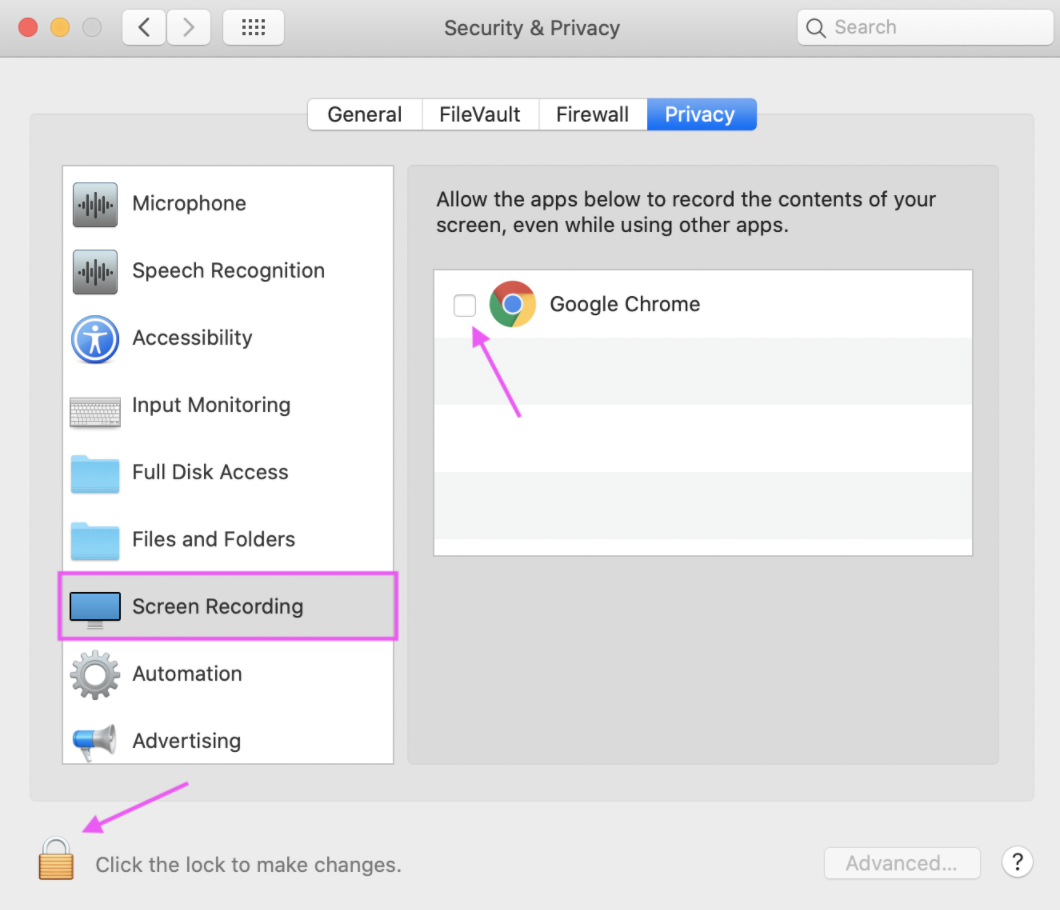
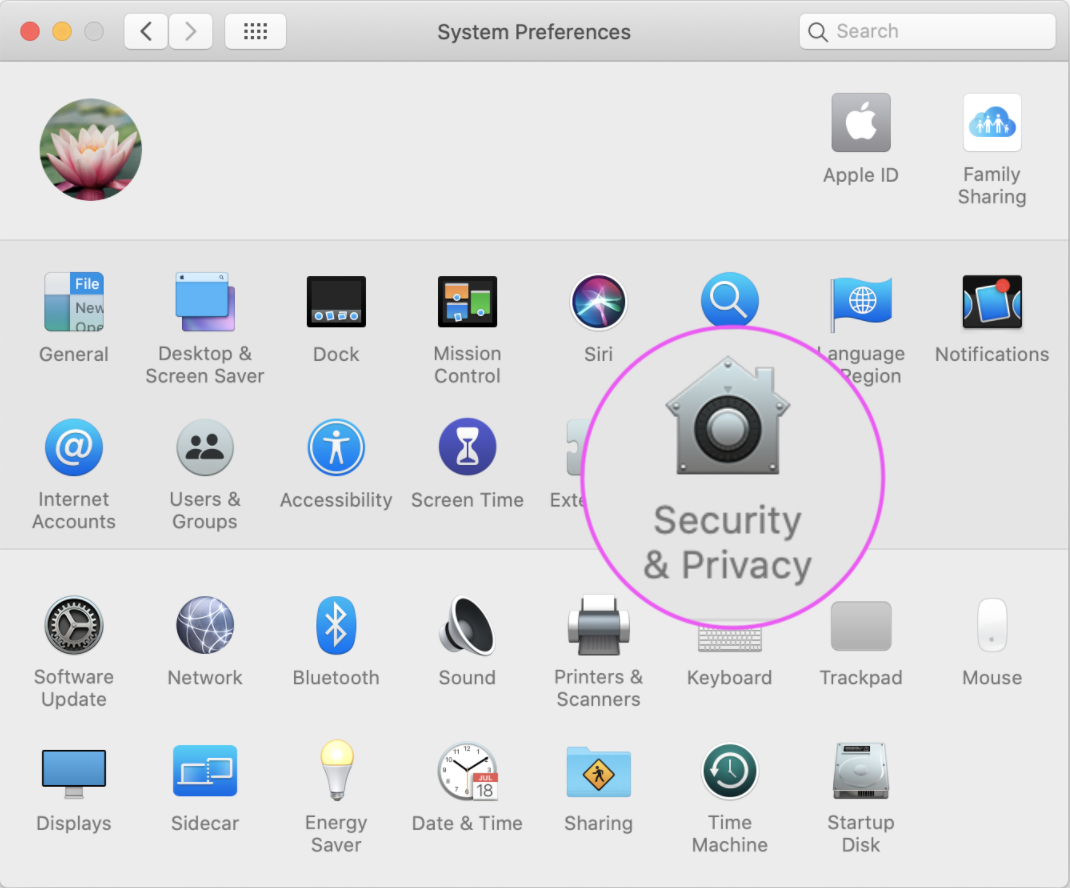 2. In the Screen Recording section, click the box next to Google Chrome or Microsoft Edge to allow access for your Dscout diary study with desktop activities. You may need to click the lock icon in the bottom-left to make changes.
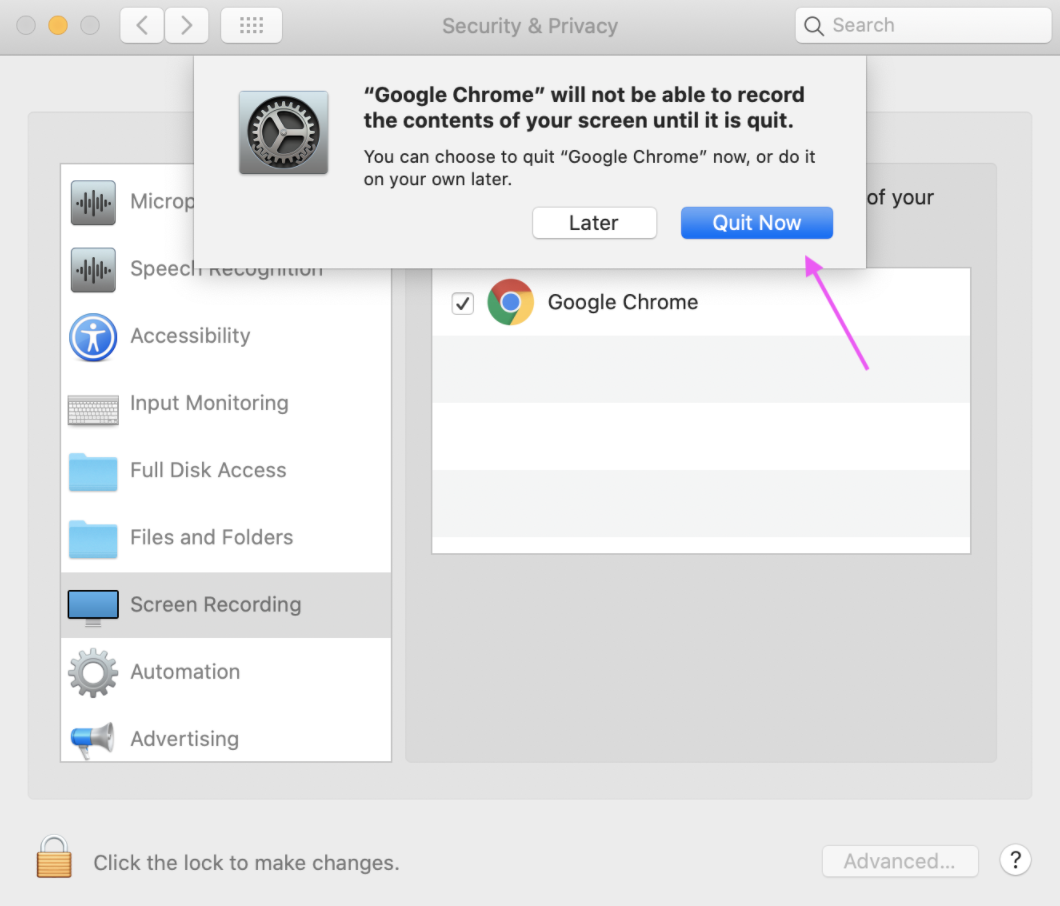
 3. A pop-up should appear indicating that Google Chrome or Microsoft Edge will need to be quit before it is able to record the contents of your screen. Click "Quit Now" to exit out of all running instances of Google Chrome or Microsoft Edge.
 4. Repeat steps 2 and 3 for the “Camera” and “Microphone” sections in your computer’s Security & Privacy settings, if necessary.
5. Reopen Chrome or Edge and finish your web setup by [granting Dscout camera and microphone permissions!](/diary-studies/diary-technical-requirements/how-to-grant-camera-and-microphone-permissions-for-desktop-diary-activities.md)
{% hint style="info" %}
**Note:** If you disable the Camera, Microphone, or Screen Recording permissions in System Preferences, you’ll need to enable them again later.
{% endhint %}
## Operating system permission issues for PC
To ensure Google Chrome has access to your PC’s Camera and Microphone, follow the steps below.
1. To ensure Camera permissions are enabled, go to **Start** > **Settings** > **Privacy** > **Camera**.
2. Under **Choose which apps can access your camera**, make sure the setting for Google Chrome or Microsoft Edge is **On**.
4. Repeat steps 2 and 3 for the “Camera” and “Microphone” sections in your computer’s Security & Privacy settings, if necessary.
5. Reopen Chrome or Edge and finish your web setup by [granting Dscout camera and microphone permissions!](/diary-studies/diary-technical-requirements/how-to-grant-camera-and-microphone-permissions-for-desktop-diary-activities.md)
{% hint style="info" %}
**Note:** If you disable the Camera, Microphone, or Screen Recording permissions in System Preferences, you’ll need to enable them again later.
{% endhint %}
## Operating system permission issues for PC
To ensure Google Chrome has access to your PC’s Camera and Microphone, follow the steps below.
1. To ensure Camera permissions are enabled, go to **Start** > **Settings** > **Privacy** > **Camera**.
2. Under **Choose which apps can access your camera**, make sure the setting for Google Chrome or Microsoft Edge is **On**.
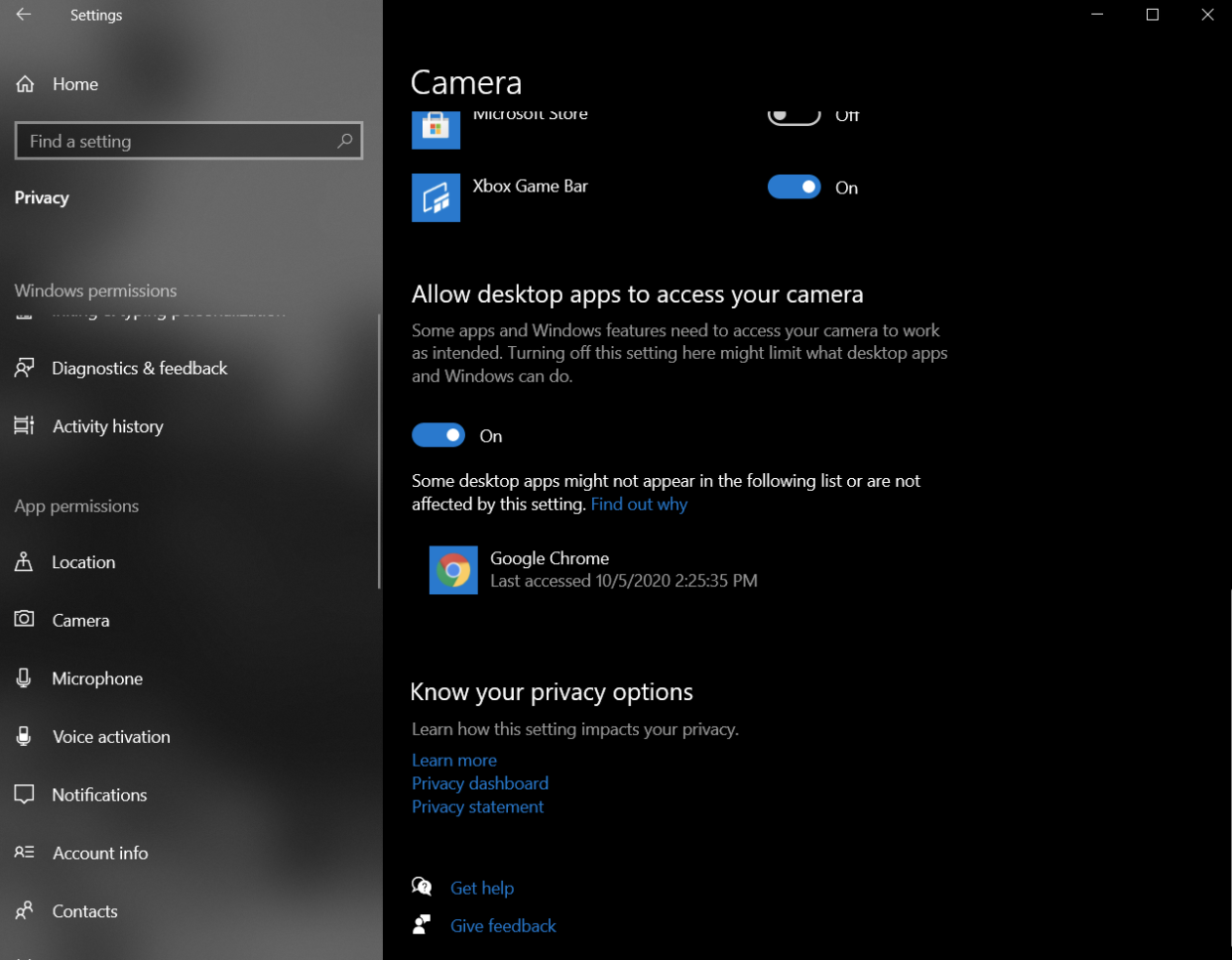 3. To ensure Microphone permissions are enabled, go to **Start** > **Settings** > **Privacy** > **Microphone**.
4. Under **Choose which apps can access your microphone**, make sure the setting for Google Chrome or Microsoft Edge is **On**.
3. To ensure Microphone permissions are enabled, go to **Start** > **Settings** > **Privacy** > **Microphone**.
4. Under **Choose which apps can access your microphone**, make sure the setting for Google Chrome or Microsoft Edge is **On**.
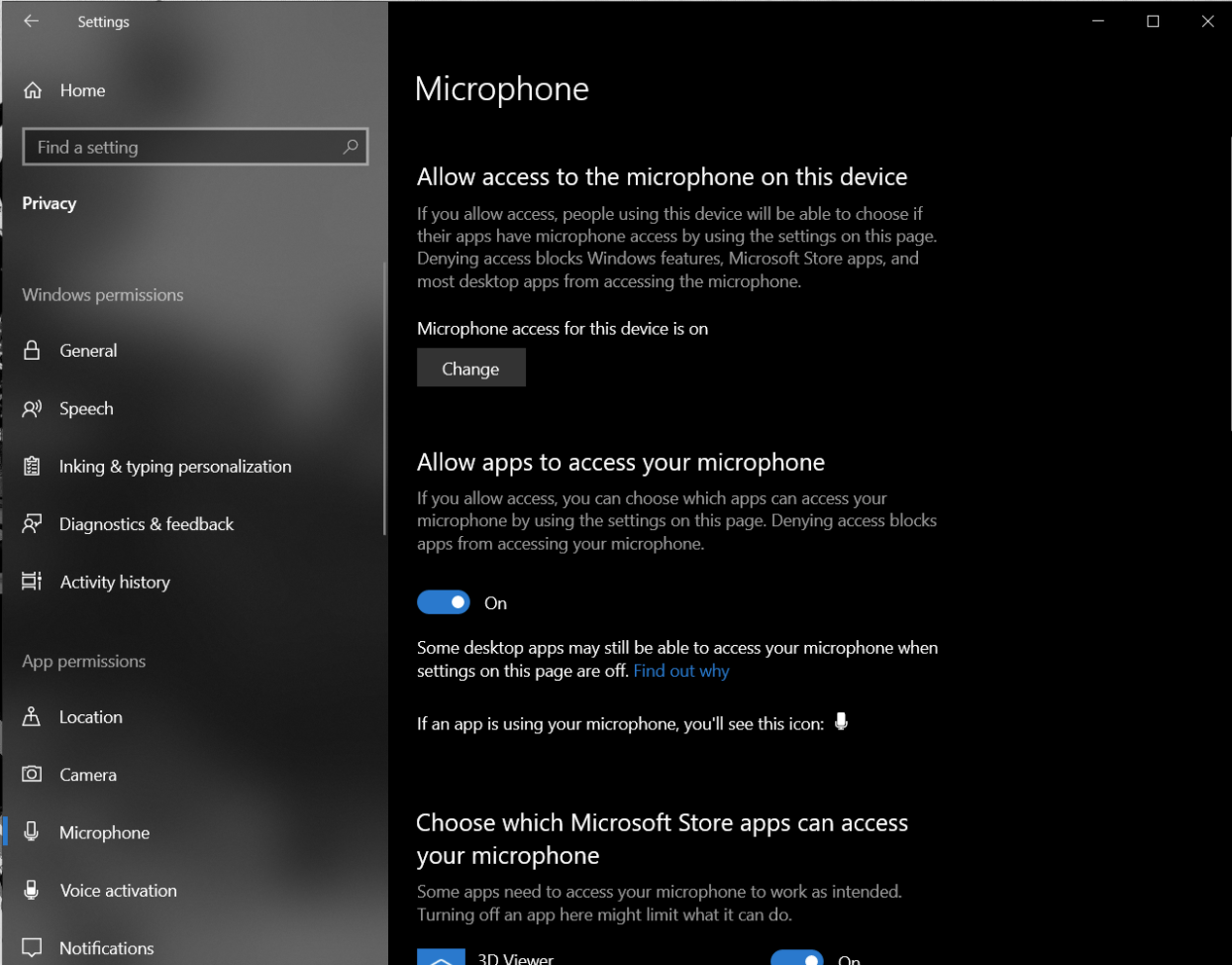 5. For these settings to take effect, you’ll need to quit out of all running instances of Google Chrome or Microsoft Edge.
6. Reopen Chrome or Edge and finish your web setup by [granting Dscout camera and microphone permissions!](/diary-studies/diary-technical-requirements/how-to-grant-camera-and-microphone-permissions-for-desktop-diary-activities.md)
{% hint style="info" %}
**Note:** If you disable the Camera or Microphone permissions in Settings, you’ll need to enable them again later.
{% endhint %}
## Browser permission issues
When you first install the Dscout browser extension, Chrome or Edge should show a dialog box asking you to [grant the Dscout browser extension permission to use your Microphone and Camera](/diary-studies/diary-technical-requirements/how-to-grant-camera-and-microphone-permissions-for-desktop-diary-activities.md).
If the Camera and Microphone permissions prompts don't show up when you install the extension, try clicking on the Camera icon on the right side of the browser address bar. See below.
5. For these settings to take effect, you’ll need to quit out of all running instances of Google Chrome or Microsoft Edge.
6. Reopen Chrome or Edge and finish your web setup by [granting Dscout camera and microphone permissions!](/diary-studies/diary-technical-requirements/how-to-grant-camera-and-microphone-permissions-for-desktop-diary-activities.md)
{% hint style="info" %}
**Note:** If you disable the Camera or Microphone permissions in Settings, you’ll need to enable them again later.
{% endhint %}
## Browser permission issues
When you first install the Dscout browser extension, Chrome or Edge should show a dialog box asking you to [grant the Dscout browser extension permission to use your Microphone and Camera](/diary-studies/diary-technical-requirements/how-to-grant-camera-and-microphone-permissions-for-desktop-diary-activities.md).
If the Camera and Microphone permissions prompts don't show up when you install the extension, try clicking on the Camera icon on the right side of the browser address bar. See below.
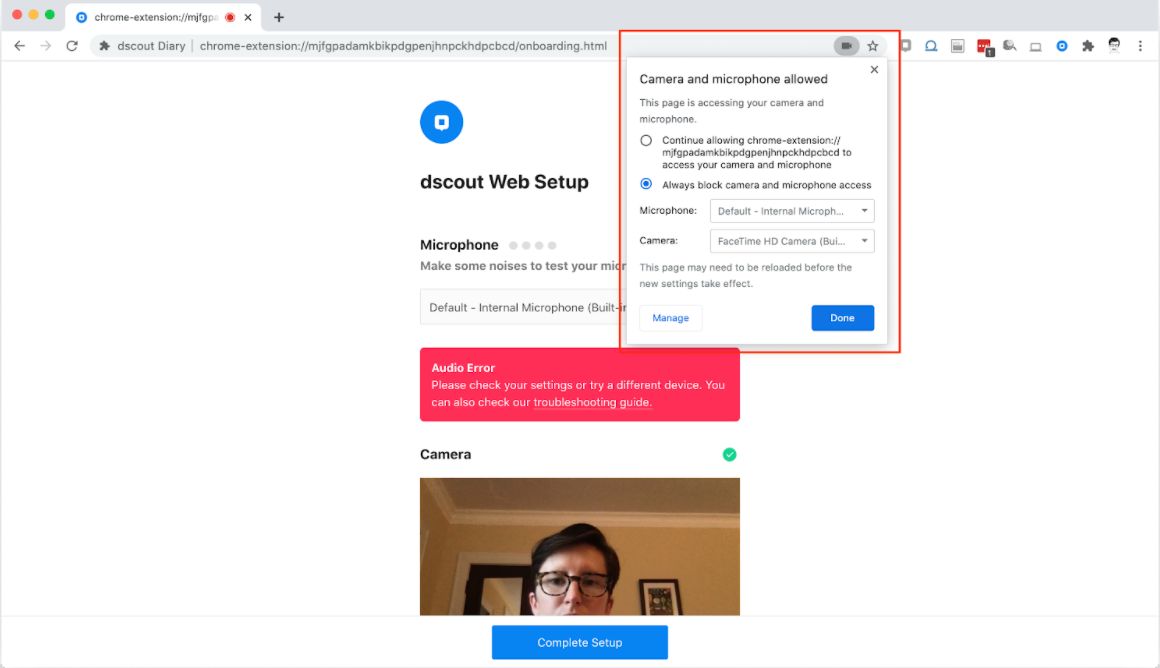 Clicking this option should either open up the permissions dialog box or show that your camera or microphone has been blocked.
Additionally, we recommend taking the following steps to make sure permissions are not blocked for Dscout in your web browser:
1. Open a Google Chrome or Microsoft Edge web browser window.
2. At the top right next to your address bar, click on the **More** icon (the three dots icon).
3. Click **Settings** at the bottom of the dropdown menu.
4. Google Chrome users:
1. Click **Privacy and security**
2. Click **Site Settings**.
3. Click **Camera or Microphone**.
4. Check if the Dscout Chrome extension is blocked for Camera and Microphone. If it is, remove the existing exception by clicking on the **Delete** icon to the right of the site.
5. Microsoft Edge users:
1. Click **Cookies and Site Permissions**
2. Click **All Sites**
3. Locate dscout.com and verify that camera and microphone permissions are set to **allow**.
## Other camera, microphone, and screensharing issues
If adjusting your permissions settings at both the operating system level and the Chrome browser level has not resolved your issue, check for these [other camera and microphone issues](/diary-studies/diary-troubleshooting/camera-and-microphone-issues-in-desktop-diary-activities.md) related to hardware and connectivity.
Additionally, if the device you're using is a work or school computer, there may be IT software installed that forbids screen sharing; to resolve these issues, we recommend that you reach out to your company's or school's IT team.
## Reinstalling the Dscout browser extension
Sometimes, it’s best to just start over. If none of the above steps have helped you to resolve your issues with capturing videos, photos, or screen recordings, try removing the Dscout browser extension and reinstalling it.
1. To remove the extension, click on this [link](https://chrome.google.com/webstore/detail/dscout-diary/mjfgpadamkbikpdgpenjhnpckhdpcbcd), then tap to remove the extension
2. To reinstall the extension, click on this [link](https://chrome.google.com/webstore/detail/dscout-diary/mjfgpadamkbikpdgpenjhnpckhdpcbcd) again. You can get more guidance on installing the browser extension [here](/diary-studies/diary-technical-requirements/installing-the-dscout-browser-extension.md).
---
# Agent Instructions
This documentation is published with GitBook. GitBook is the documentation platform designed so that both humans and AI agents can read, navigate, and reason over technical content effectively. Learn more at gitbook.com.
## Querying This Documentation
If you need additional information that is not directly available in this page, you can query the documentation dynamically by asking a question.
Perform an HTTP GET request on the current page URL with the `ask` query parameter, and the optional `goal` query parameter:
```
GET https://participanthelp.dscout.com/diary-studies/diary-troubleshooting/troubleshooting-camera-and-microphone-permissions-for-desktop-diary-activities.md?ask=&goal=
```
`ask` is the immediate question: it should be specific, self-contained, and written in natural language.
`goal` is optional and describes the broader end goal you are ultimately trying to accomplish on behalf of the user. GitBook uses it to tailor the answer towards what is most useful for that goal.
The response will contain a direct answer to the question and relevant excerpts and sources from the documentation.
Use this mechanism when the answer is not explicitly present in the current page, you need clarification or additional context, or you want to retrieve related documentation sections.
Clicking this option should either open up the permissions dialog box or show that your camera or microphone has been blocked.
Additionally, we recommend taking the following steps to make sure permissions are not blocked for Dscout in your web browser:
1. Open a Google Chrome or Microsoft Edge web browser window.
2. At the top right next to your address bar, click on the **More** icon (the three dots icon).
3. Click **Settings** at the bottom of the dropdown menu.
4. Google Chrome users:
1. Click **Privacy and security**
2. Click **Site Settings**.
3. Click **Camera or Microphone**.
4. Check if the Dscout Chrome extension is blocked for Camera and Microphone. If it is, remove the existing exception by clicking on the **Delete** icon to the right of the site.
5. Microsoft Edge users:
1. Click **Cookies and Site Permissions**
2. Click **All Sites**
3. Locate dscout.com and verify that camera and microphone permissions are set to **allow**.
## Other camera, microphone, and screensharing issues
If adjusting your permissions settings at both the operating system level and the Chrome browser level has not resolved your issue, check for these [other camera and microphone issues](/diary-studies/diary-troubleshooting/camera-and-microphone-issues-in-desktop-diary-activities.md) related to hardware and connectivity.
Additionally, if the device you're using is a work or school computer, there may be IT software installed that forbids screen sharing; to resolve these issues, we recommend that you reach out to your company's or school's IT team.
## Reinstalling the Dscout browser extension
Sometimes, it’s best to just start over. If none of the above steps have helped you to resolve your issues with capturing videos, photos, or screen recordings, try removing the Dscout browser extension and reinstalling it.
1. To remove the extension, click on this [link](https://chrome.google.com/webstore/detail/dscout-diary/mjfgpadamkbikpdgpenjhnpckhdpcbcd), then tap to remove the extension
2. To reinstall the extension, click on this [link](https://chrome.google.com/webstore/detail/dscout-diary/mjfgpadamkbikpdgpenjhnpckhdpcbcd) again. You can get more guidance on installing the browser extension [here](/diary-studies/diary-technical-requirements/installing-the-dscout-browser-extension.md).
---
# Agent Instructions
This documentation is published with GitBook. GitBook is the documentation platform designed so that both humans and AI agents can read, navigate, and reason over technical content effectively. Learn more at gitbook.com.
## Querying This Documentation
If you need additional information that is not directly available in this page, you can query the documentation dynamically by asking a question.
Perform an HTTP GET request on the current page URL with the `ask` query parameter, and the optional `goal` query parameter:
```
GET https://participanthelp.dscout.com/diary-studies/diary-troubleshooting/troubleshooting-camera-and-microphone-permissions-for-desktop-diary-activities.md?ask=&goal=
```
`ask` is the immediate question: it should be specific, self-contained, and written in natural language.
`goal` is optional and describes the broader end goal you are ultimately trying to accomplish on behalf of the user. GitBook uses it to tailor the answer towards what is most useful for that goal.
The response will contain a direct answer to the question and relevant excerpts and sources from the documentation.
Use this mechanism when the answer is not explicitly present in the current page, you need clarification or additional context, or you want to retrieve related documentation sections.