> For the complete documentation index, see [llms.txt](https://participanthelp.dscout.com/llms.txt). Markdown versions of documentation pages are available by appending `.md` to page URLs; this page is available as [Markdown](https://participanthelp.dscout.com/account-settings/account-setup/updating-your-scout-profile.md).
# Updating your scout profile
When you first apply to a study or begin a study that requires a completed profile, you’ll be prompted to first fill out your profile. The following fields are mandatory: profile picture, first name, last name, birthday, email, phone number, location, and ethnicity (U.S. scouts only).
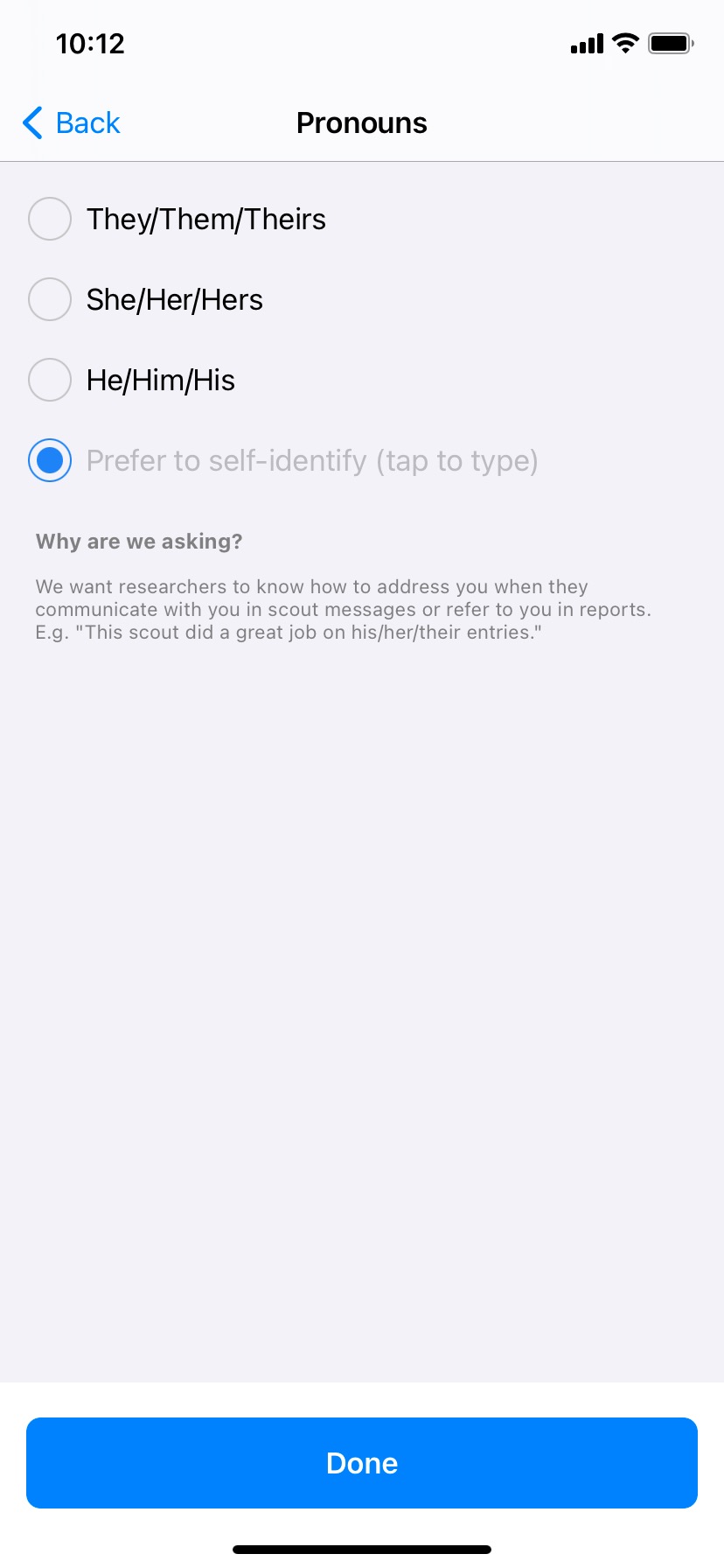
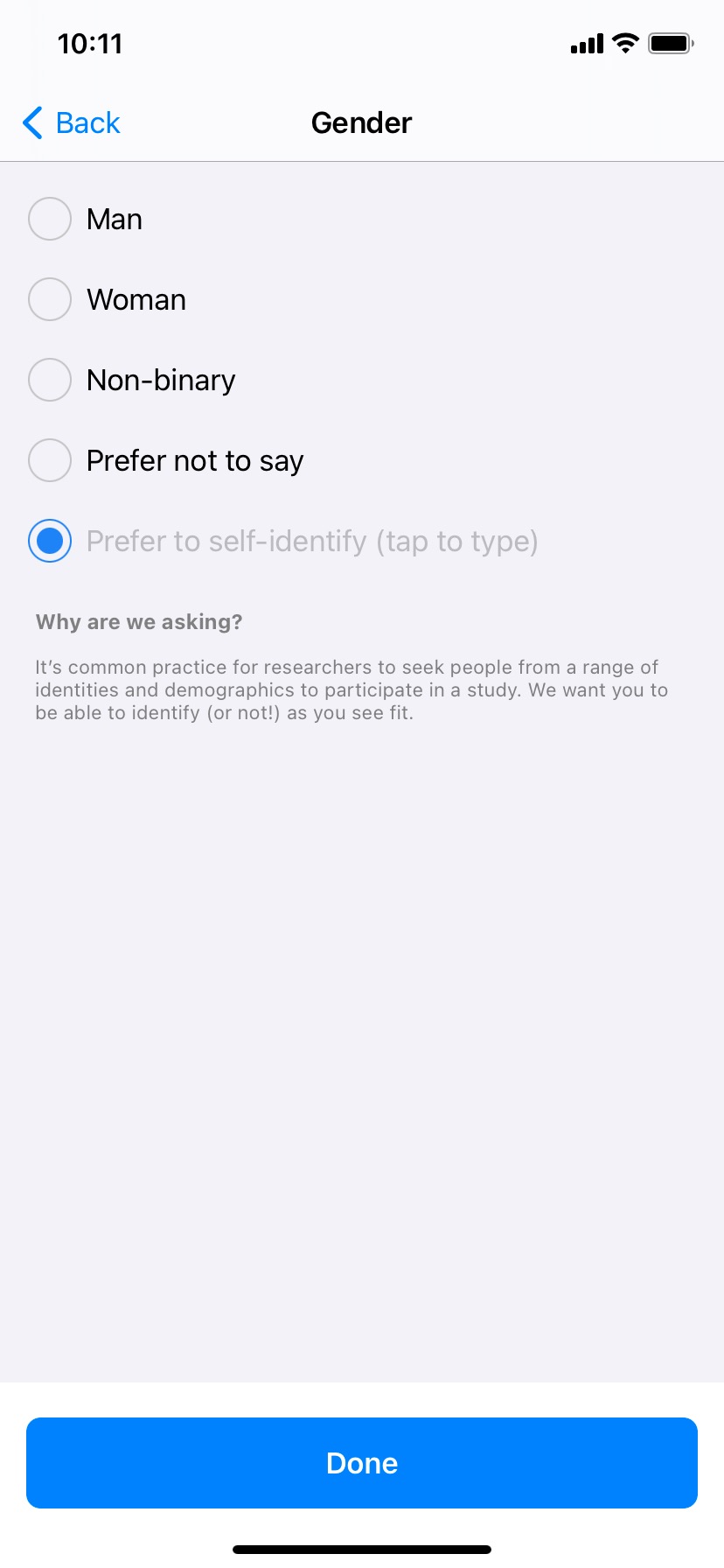
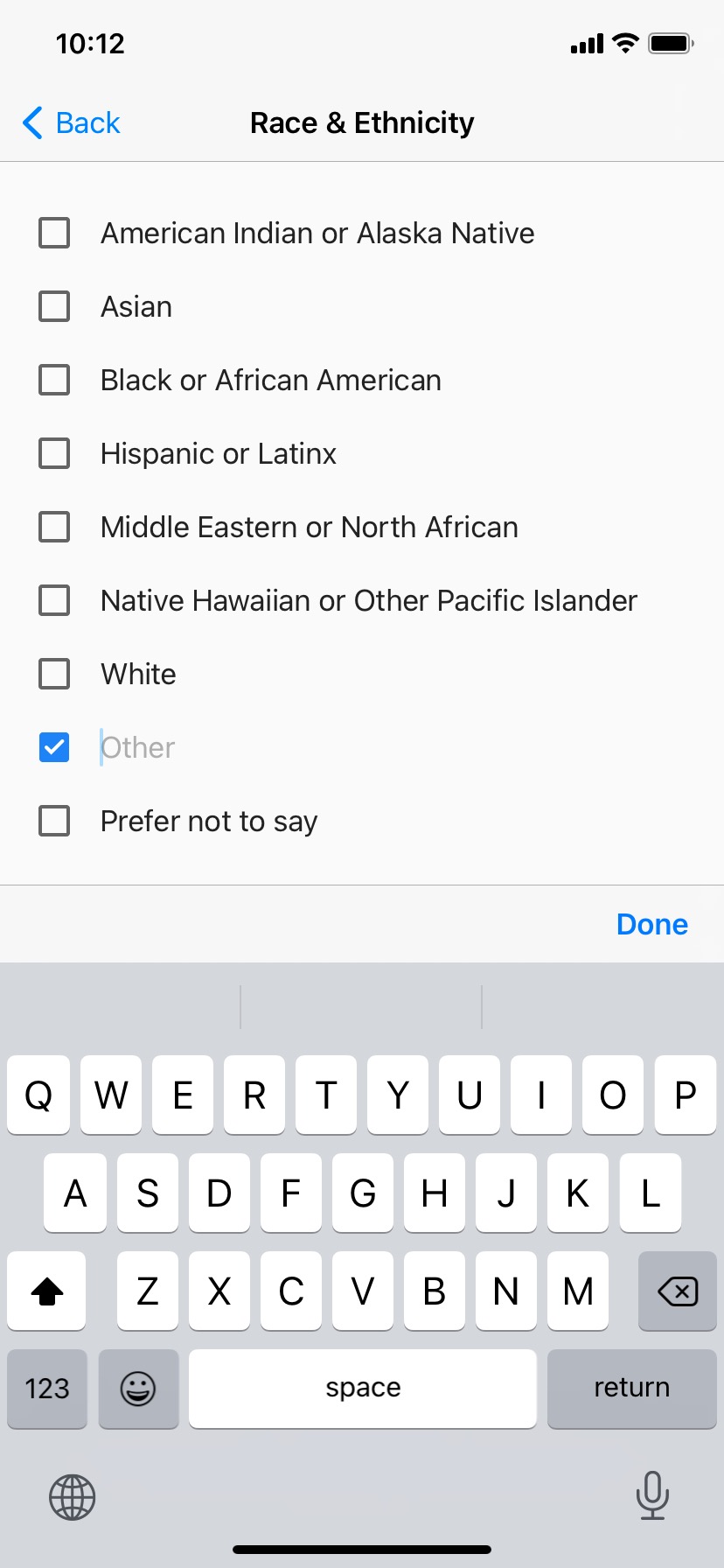
We understand that identity isn't static, so you'll have the ability to self-identify your gender, provide your pronouns (including a "tap to type" option if you don't see yours included), and select multiple ethnicities (if applicable). You'll also have the option to edit these fields whenever you'd like.
 ### Updating your profile on Android mobile devices
1. Tap on the **Triple Horizontal Lines icon ☰** on the top-top left corner of your screen.
2. Tap **View Profile** and tap on the **Pencil icon** on the top right corner of your screen. This will allow you to edit your profile.
3. Edit existing fields or answer the additional questions related to your profile here.
4. To update your profile picture, simply tap on the **Camera icon** on the bottom-right corner of your profile picture to take a new picture or select one from your photo gallery
5. When you’re finished, click on the **Checkmark icon** on the top-right corner of your screen.
### Updating your profile on iOS mobile devices
1. Tap on the **Profile icon** in the bottom right corner when you’re signed into the Dscout mobile app.
2. Tap on any of the fields to add or edit your information; tap **save** when you're done with each section.
3. To update your profile picture, simply tap on your **e\*\*\*\*xisting profile picture** to access your camera or photo gallery.
### Updating your profile on the web
1. Log into your account at .
2. Once logged in, click on your **Profile photo** in the top-right corner of your screen’s navigation bar (if you don’t have a profile picture uploaded, you’ll see your initials in a blue circle instead).
3. Click on the **Profile button** in the dropdown list in the top-right corner of your screen.
4. Once on the Profile page, navigate to the field(s) you want to update.
5. Click the **Add icon** (for empty fields) or **Edit icon** (for fields that already have a value) on the desired profile field. Once you make changes, click the **“Save” button** in the modal.
---
# Agent Instructions
This documentation is published with GitBook. GitBook is the documentation platform designed so that both humans and AI agents can read, navigate, and reason over technical content effectively. Learn more at gitbook.com.
## Querying This Documentation
If you need additional information that is not directly available in this page, you can query the documentation dynamically by asking a question.
Perform an HTTP GET request on the current page URL with the `ask` query parameter, and the optional `goal` query parameter:
```
GET https://participanthelp.dscout.com/account-settings/account-setup/updating-your-scout-profile.md?ask=&goal=
```
`ask` is the immediate question: it should be specific, self-contained, and written in natural language.
`goal` is optional and describes the broader end goal you are ultimately trying to accomplish on behalf of the user. GitBook uses it to tailor the answer towards what is most useful for that goal.
The response will contain a direct answer to the question and relevant excerpts and sources from the documentation.
Use this mechanism when the answer is not explicitly present in the current page, you need clarification or additional context, or you want to retrieve related documentation sections.
### Updating your profile on Android mobile devices
1. Tap on the **Triple Horizontal Lines icon ☰** on the top-top left corner of your screen.
2. Tap **View Profile** and tap on the **Pencil icon** on the top right corner of your screen. This will allow you to edit your profile.
3. Edit existing fields or answer the additional questions related to your profile here.
4. To update your profile picture, simply tap on the **Camera icon** on the bottom-right corner of your profile picture to take a new picture or select one from your photo gallery
5. When you’re finished, click on the **Checkmark icon** on the top-right corner of your screen.
### Updating your profile on iOS mobile devices
1. Tap on the **Profile icon** in the bottom right corner when you’re signed into the Dscout mobile app.
2. Tap on any of the fields to add or edit your information; tap **save** when you're done with each section.
3. To update your profile picture, simply tap on your **e\*\*\*\*xisting profile picture** to access your camera or photo gallery.
### Updating your profile on the web
1. Log into your account at .
2. Once logged in, click on your **Profile photo** in the top-right corner of your screen’s navigation bar (if you don’t have a profile picture uploaded, you’ll see your initials in a blue circle instead).
3. Click on the **Profile button** in the dropdown list in the top-right corner of your screen.
4. Once on the Profile page, navigate to the field(s) you want to update.
5. Click the **Add icon** (for empty fields) or **Edit icon** (for fields that already have a value) on the desired profile field. Once you make changes, click the **“Save” button** in the modal.
---
# Agent Instructions
This documentation is published with GitBook. GitBook is the documentation platform designed so that both humans and AI agents can read, navigate, and reason over technical content effectively. Learn more at gitbook.com.
## Querying This Documentation
If you need additional information that is not directly available in this page, you can query the documentation dynamically by asking a question.
Perform an HTTP GET request on the current page URL with the `ask` query parameter, and the optional `goal` query parameter:
```
GET https://participanthelp.dscout.com/account-settings/account-setup/updating-your-scout-profile.md?ask=&goal=
```
`ask` is the immediate question: it should be specific, self-contained, and written in natural language.
`goal` is optional and describes the broader end goal you are ultimately trying to accomplish on behalf of the user. GitBook uses it to tailor the answer towards what is most useful for that goal.
The response will contain a direct answer to the question and relevant excerpts and sources from the documentation.
Use this mechanism when the answer is not explicitly present in the current page, you need clarification or additional context, or you want to retrieve related documentation sections.