> For the complete documentation index, see [llms.txt](https://participanthelp.dscout.com/llms.txt). Markdown versions of documentation pages are available by appending `.md` to page URLs; this page is available as [Markdown](https://participanthelp.dscout.com/account-settings/account-setup/create-a-scout-account.md).
# Create a scout account
Dscout is the place where researchers and designers come to find people just like you who are ready and willing to share your opinions on topics you know best. Whether it’s sharing your experience buying stuff online or providing feedback on a new app design, your voice is the one that matters most around here. But to make sure it’s heard, you’ll first need to create an account.
{% hint style="info" %}
**Note:** To create a Dscout account, you must be 13 or older in the United States, or 16 or older in Europe. If you’re under 18, you must have permission from a parent or guardian regardless of location.
{% endhint %}
{% tabs %}
{% tab title="iOS" %}
If you’re using an iPhone, you can get yourself up and running using Dscout’s dedicated iOS app.
**Tip:** While you’ll be able to download and use the Dscout app on an iPad, we highly recommend you use an iPhone to have the best experience.
**To create a Dscout account using the iOS app:**
{% stepper %}
{% step %}
Download the [Dscout app](https://apps.apple.com/us/app/dscout/id395563123) from the Apple App Store and open it.
{% endstep %}
{% step %}
Tap the **Sign up** button.
{% endstep %}
{% step %}
Enter your **First name** and **Last name**. Then, tap **Continue**.
{% endstep %}
{% step %}
Enter your **Date of birth**. Then, tap **Continue**.
{% endstep %}
{% step %}
Select your **Country**. Then, provide the additional location information as requested and tap **Continue**.
{% endstep %}
{% step %}
Enter your **Email**. Then, choose how you want to receive PayPal payments: select **Use this email for PayPal payments** to use the same email for both, or select **Use alternative email for PayPal payments** and enter a different **PayPal email**. Then, tap **Continue**.
{% hint style="info" %}
**Note:** If you choose to use an alternative email, it must be different from your sign-up email — entering the same email in both fields will show an error and you won't be able to continue.
{% endhint %}
{% endstep %}
{% step %}
Enter a **Password**. Your password must be between 12 and 32 characters, include one capital letter, and one special character (for example, ! @ # $ % ^ & \*).
{% endstep %}
{% step %}
Tap **Create account**.
{% endstep %}
{% step %}
After reading the Scout Terms and Conditions and Privacy Policy, tap **I agree**.
{% endstep %}
{% endstepper %}
Now, you're officially a Dscout Scout! Next, you’ll land on the **Explore** tab of the Dscout app. This is where you’ll find screeners and studies to apply to. You'll also see a checklist containing other items that will help you make the most of Dscout. For more information, see Complete your account checklist.
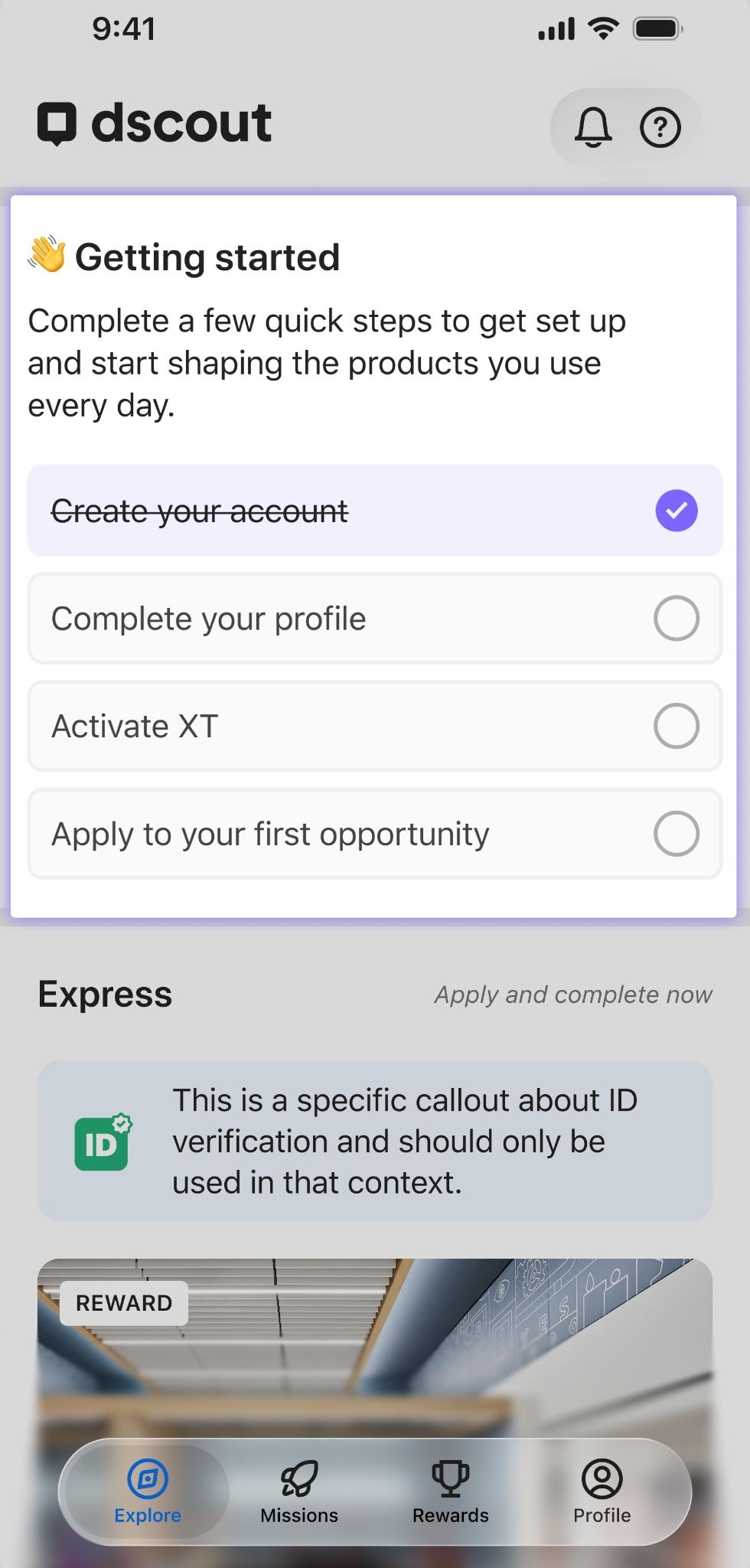 For more on navigating the app, see Navigating through the Scout mobile app. And if you want to learn more about how to customize your account, see Updating your Scout profile.
{% endtab %}
{% tab title="Android" %}
If you’re using an Android phone, you can get yourself up and running using Dscout’s dedicated Android app.
**To create a Dscout account using the Android app:**
{% stepper %}
{% step %}
Download the [Dscout Android app](https://play.google.com/store/apps/details?id=com.vokal.dscout\&hl=en_US\&pli=1) and open it.
{% endstep %}
{% step %}
Tap **Get started**.
{% endstep %}
{% step %}
Tap **Sign up**.
{% endstep %}
{% step %}
Enter your **First name** and **Last name**. Then, tap **Next**.
{% endstep %}
{% step %}
Enter your **Birthday**. Then, tap **Next**.
{% endstep %}
{% step %}
Select your **Country**. Then, provide the additional location information as requested. Then, tap **Next**.
{% endstep %}
{% step %}
Enter your **Email**. Then, tap **Next**.
{% endstep %}
{% step %}
Enter a **Password**. Your password must be between 12 and 32 characters, include one capital letter, and one special character (for example, ! @ # $ % ^ & \*).
{% endstep %}
{% step %}
Tap **Create account**.
{% endstep %}
{% step %}
After reading the Scout Terms and Conditions and Privacy Policy, tap **I agree**.
{% endstep %}
{% endstepper %}
Now, you're officially a Dscout Scout! Next, you’ll land on the **Explore** tab of the Dscout app. This is where you’ll find screeners and studies to apply to. You'll also see a checklist containing other items that will help you make the most of Dscout. For more information, see Complete your account checklist.
For more on navigating the app, see Navigating through the Scout mobile app. And if you want to learn more about how to customize your account, see Updating your Scout profile.
{% endtab %}
{% endtabs %}
---
# Agent Instructions
This documentation is published with GitBook. GitBook is the documentation platform designed so that both humans and AI agents can read, navigate, and reason over technical content effectively. Learn more at gitbook.com.
## Querying This Documentation
If you need additional information that is not directly available in this page, you can query the documentation by asking a question.
Perform an HTTP GET request on the following URL with the `ask` and `goal` query parameters:
```
GET https://participanthelp.dscout.com/account-settings/account-setup/create-a-scout-account.md?ask=&goal=
```
`ask` is the immediate question: it should be specific, self-contained, and written in natural language.
`goal` is what the user is ultimately trying to achieve, the reason they need the answer. Sharing it helps GitBook give you a better, more relevant answer. A goal is most helpful when it describes the outcome the user wants rather than restating the question. For example, with `ask=how do I create an API token`, a goal like `automate deployments from our CI pipeline` lets GitBook tailor the answer to that use case.
The response will contain a direct answer to the question and relevant excerpts and sources from the documentation.
Use this mechanism when the answer is not explicitly present in the current page, you need clarification or additional context, or you want to retrieve related documentation sections.
For more on navigating the app, see Navigating through the Scout mobile app. And if you want to learn more about how to customize your account, see Updating your Scout profile.
{% endtab %}
{% tab title="Android" %}
If you’re using an Android phone, you can get yourself up and running using Dscout’s dedicated Android app.
**To create a Dscout account using the Android app:**
{% stepper %}
{% step %}
Download the [Dscout Android app](https://play.google.com/store/apps/details?id=com.vokal.dscout\&hl=en_US\&pli=1) and open it.
{% endstep %}
{% step %}
Tap **Get started**.
{% endstep %}
{% step %}
Tap **Sign up**.
{% endstep %}
{% step %}
Enter your **First name** and **Last name**. Then, tap **Next**.
{% endstep %}
{% step %}
Enter your **Birthday**. Then, tap **Next**.
{% endstep %}
{% step %}
Select your **Country**. Then, provide the additional location information as requested. Then, tap **Next**.
{% endstep %}
{% step %}
Enter your **Email**. Then, tap **Next**.
{% endstep %}
{% step %}
Enter a **Password**. Your password must be between 12 and 32 characters, include one capital letter, and one special character (for example, ! @ # $ % ^ & \*).
{% endstep %}
{% step %}
Tap **Create account**.
{% endstep %}
{% step %}
After reading the Scout Terms and Conditions and Privacy Policy, tap **I agree**.
{% endstep %}
{% endstepper %}
Now, you're officially a Dscout Scout! Next, you’ll land on the **Explore** tab of the Dscout app. This is where you’ll find screeners and studies to apply to. You'll also see a checklist containing other items that will help you make the most of Dscout. For more information, see Complete your account checklist.
For more on navigating the app, see Navigating through the Scout mobile app. And if you want to learn more about how to customize your account, see Updating your Scout profile.
{% endtab %}
{% endtabs %}
---
# Agent Instructions
This documentation is published with GitBook. GitBook is the documentation platform designed so that both humans and AI agents can read, navigate, and reason over technical content effectively. Learn more at gitbook.com.
## Querying This Documentation
If you need additional information that is not directly available in this page, you can query the documentation by asking a question.
Perform an HTTP GET request on the following URL with the `ask` and `goal` query parameters:
```
GET https://participanthelp.dscout.com/account-settings/account-setup/create-a-scout-account.md?ask=&goal=
```
`ask` is the immediate question: it should be specific, self-contained, and written in natural language.
`goal` is what the user is ultimately trying to achieve, the reason they need the answer. Sharing it helps GitBook give you a better, more relevant answer. A goal is most helpful when it describes the outcome the user wants rather than restating the question. For example, with `ask=how do I create an API token`, a goal like `automate deployments from our CI pipeline` lets GitBook tailor the answer to that use case.
The response will contain a direct answer to the question and relevant excerpts and sources from the documentation.
Use this mechanism when the answer is not explicitly present in the current page, you need clarification or additional context, or you want to retrieve related documentation sections.
